[Food Manufacturing] BOM Master Data Management | ORCA MRP and MES Case Study
Improving Excel-Based Recipe Management with ORCA BOM Management
A food manufacturer struggled to find the latest recipe standards because each Excel file contained different versions and information. Even the employees who prepared the recipes found it difficult to connect required materials and standard quantities by product with production plans. ORCA BOM management links materials and standard requirements by item, keeping the latest standards in one place for use in production planning.
- View the materials and standard requirements linked to a product or semi-finished product together on the details screen.
- Required quantity fields prevent a BOM from being saved while quantities for registered materials remain blank.
- Change and manage in one place the BOM used as the basis for material requirements in production planning.
Before: Recipe Standards Split Across Multiple Files
- Material composition by product: The food manufacturer managed raw material and packaging material compositions in separate Excel files for each product.
- Requirement changes: When recipe standards changed, it was difficult to identify which file reflected the new requirements.
- Production planning: Before creating a plan, employees had to recheck the material composition and base unit of each production item.
- Shop floor sharing: The reference sheets used in the office and the materials viewed on the shop floor were kept in different files.
Existing Raw Data Easily Migrated to ORCA
With support from the ORCA team, the manufacturer easily migrated its existing Raw Data to ORCA.
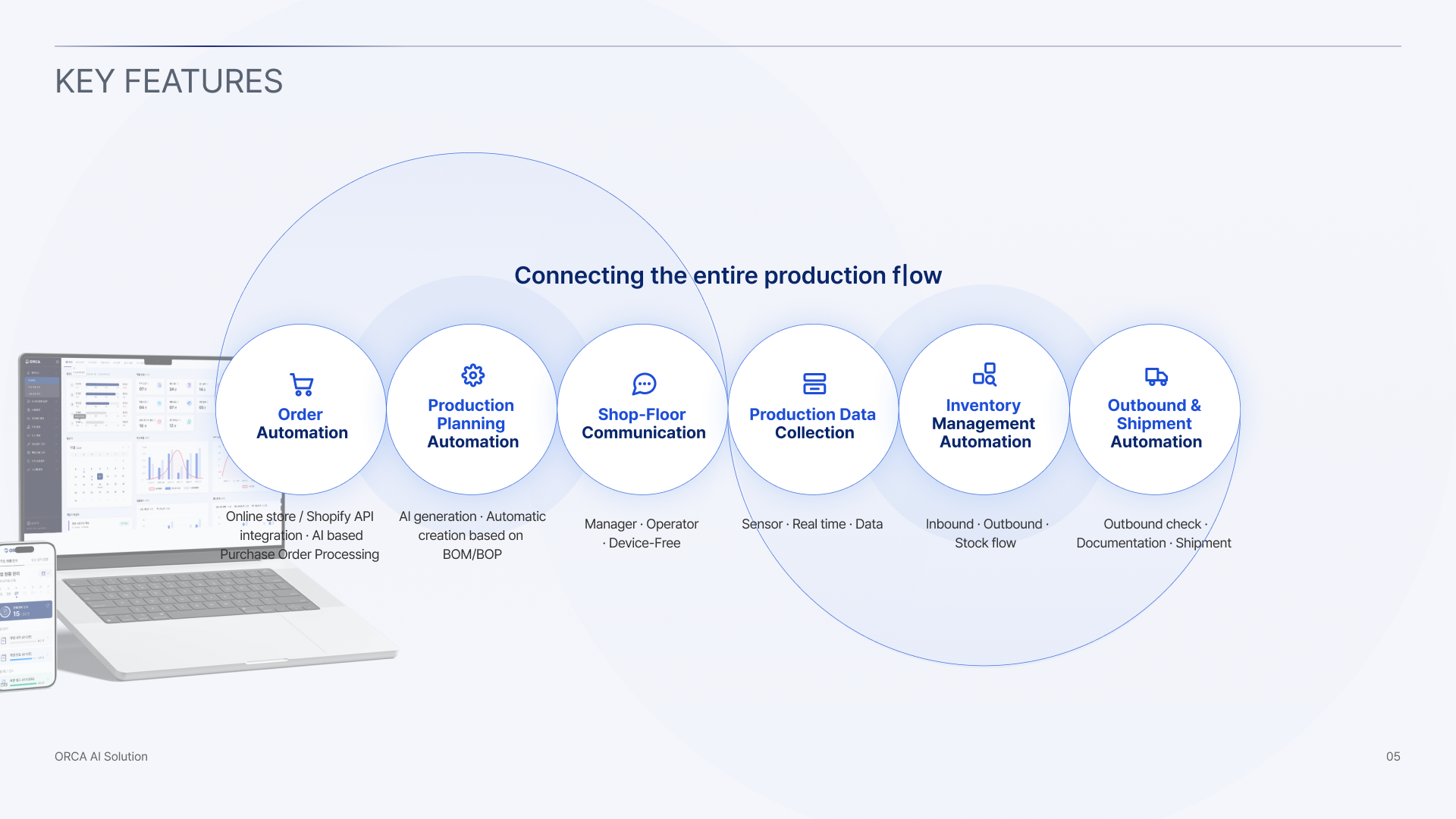
Benefits of ORCA BOM and BOP Management
- Easily view the required material list for each product based on its BOM and BOP.
- Automatically retrieve, register, and manage the required material list when creating a sales order or production plan.
- View producible quantities based on available materials for each product and current material inventory.
- Track production status, including manufacturing progress by process.
Workflow Comparison: Before and After Applying ORCA
| Operational Data | Before | After Applying ORCA |
|---|---|---|
| Item standards | Item categories and base units were compared across separate files. | Item categories and base units are registered and reviewed in the item master. |
| Material composition and quantities | Materials and quantities were located and compared in product-specific Excel rows. | Materials and quantities linked to the selected item appear together on the BOM details screen. |
| Required quantities | Employees manually checked each file for blank cells. | A BOM is saved only after the BOM unit requirement and input quantity are entered for each registered material. |
| BOM changes | Revised files and ongoing plans were compared separately. | Materials or requirements are changed on the details screen after checking whether the BOM is used in a production plan. |
| Master data access | Office files were separately transferred to other devices. | Registered information is accessed in ORCA from PCs, tablets, and mobile devices. |
Frequently Asked Questions
- What should be prepared before registering a BOM?
- Register the production item and input materials, then confirm the production item's base unit and the input standard for each material.
- What quantities are entered in a BOM?
- After selecting a product or semi-finished product, enter the quantity of each material required to produce one base item.
- What information is available in a registered BOM?
- The details screen shows the input materials linked to the selected item and the quantity of each material.
- How are input materials or requirements changed?
- Change the input material or standard requirement on the details screen, check whether it is used in a production plan, and then save the BOM.