Account and permissions
- You need a Shopify store and an owner/admin account allowed to develop and install apps.
- For Client Credentials, the app and target store must belong to the same Shopify organization.
- Order retrieval requires at least the read_orders access scope.
Create an API app in the Dev Dashboard
- In Dev Dashboard → Apps, select Create app → Start from Dev Dashboard and name the app.
- In Versions, set the app URL and newest Webhooks API version.
- Add at least read_orders to Access scopes and select Release.
- After releasing the version, open Home → Install app, select the target store, approve the permissions, and install the app. ORCA reports app_not_installed until this is complete.
- Copy the Client ID and Client Secret from Settings and paste them into the ORCA sales-channel modal.
Version configuration values
- App URL: all ORCA integration users should enter https://shopify.dev/apps/default-app-home. This is Shopify's default page for non-embedded API apps, not a store-specific URL.
- Use your own HTTPS app URL only if you have developed and deployed a separate Shopify app UI. This does not apply to the standard ORCA integration.
- Embed app in Shopify admin: clear the checkbox.
- Preferences URL: leave blank.
- Webhooks API version: select 2026-07.
- API access scopes: add read_orders.
- Optional scopes: leave blank.
- Use legacy install flow: leave disabled.
- Allowed redirection URLs: leave blank for client_credentials.
- POS: leave disabled.
- Application proxy: leave empty.
- Select Release after completing the configuration.
Issue and test the token through ORCA
- Open Settings in the Dev Dashboard and copy the Client ID and Client Secret.
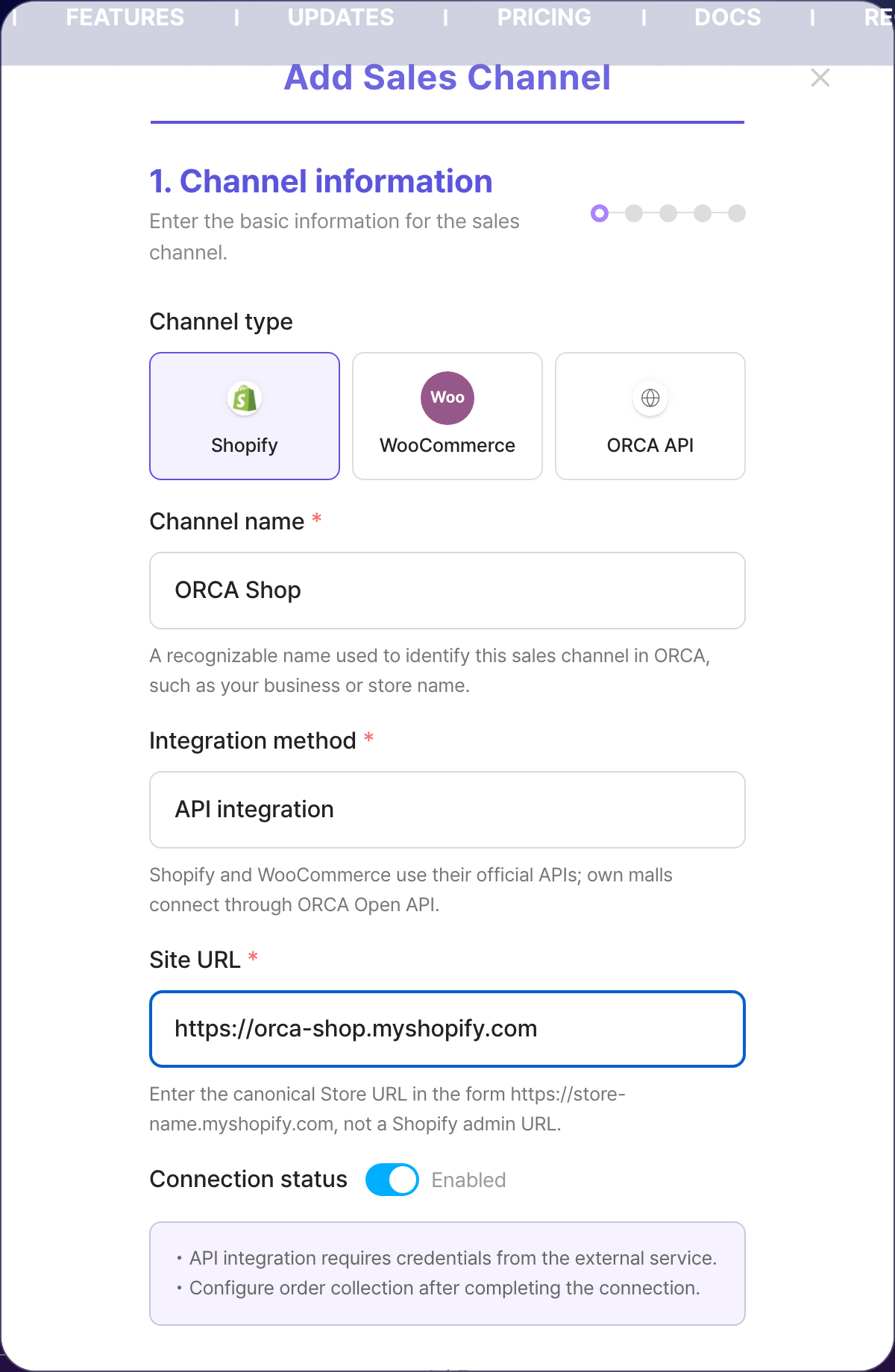
- In ORCA, open Integration Management → Sales Channels → Add sales channel and select Shopify.
- Enter a channel name and the canonical myshopify.com Store URL. The channel name is only an ORCA label and doesn't need to match the Store subdomain, but the Store URL must be exact.
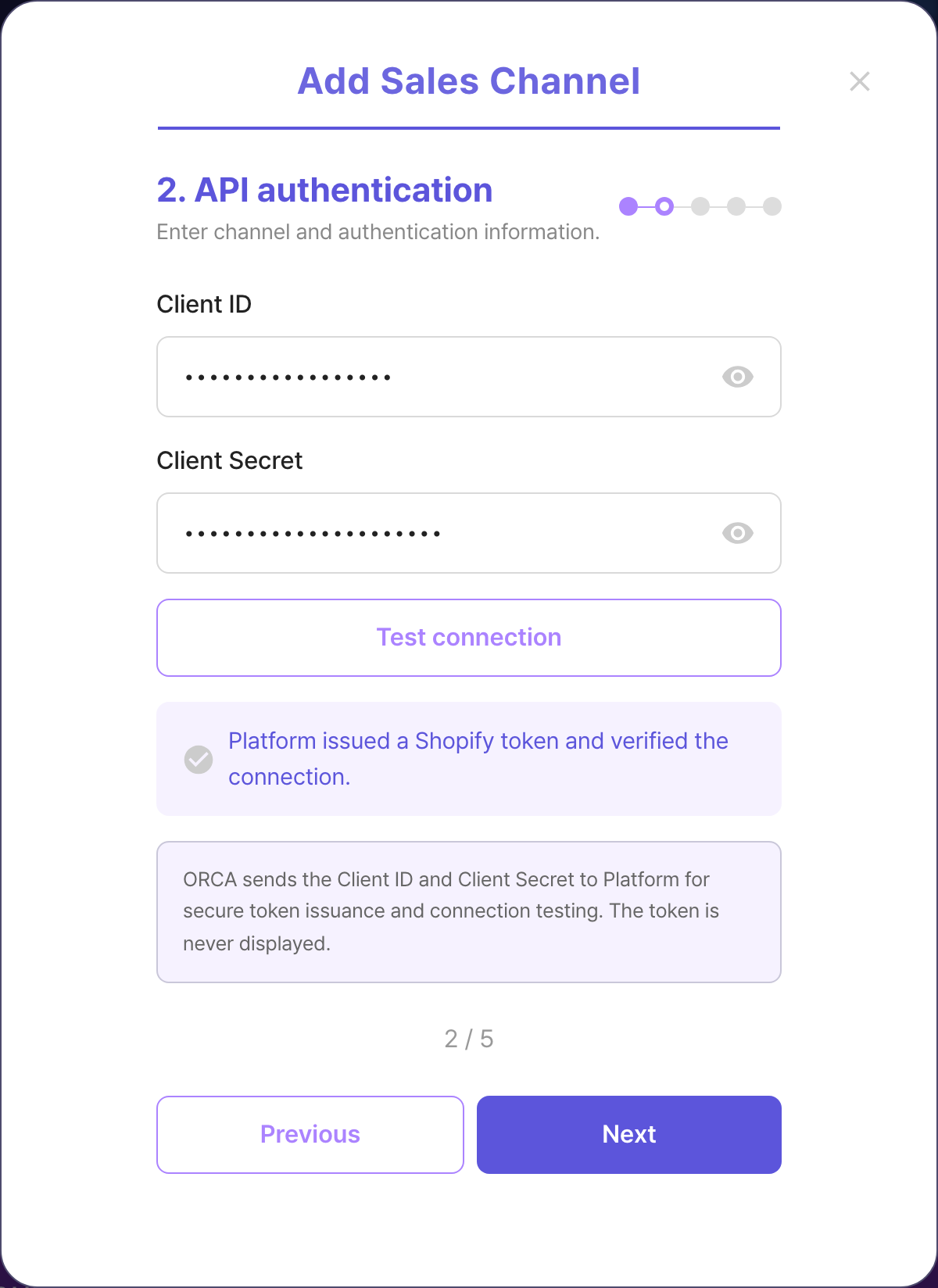
- On the API authentication step, paste the Client ID and Client Secret. You can copy them again from the fields, then run the connection test. Platform issues the Shopify token and verifies the official API connection.
- Confirm collection settings and item mapping, then finish after the final test succeeds. The Client Secret is encrypted at rest and the token is never displayed.
Official Shopify references
- Shopify APIs, libraries, and tools ↗
- Create apps using the Dev Dashboard ↗
- GraphQL Admin API 2026-07 ↗
Register in ORCA
- Open ORCA → Integration Management → Sales Channels.
- Choose Add sales channel, select Shopify, and enter the channel name and myshopify.com Store URL.
- On API authentication, enter the Client ID and Client Secret and pass the connection test.
- Confirm collection settings and item mapping, then run the final test and complete the connection.
ORCA Sales Channel Management →
Order collection status
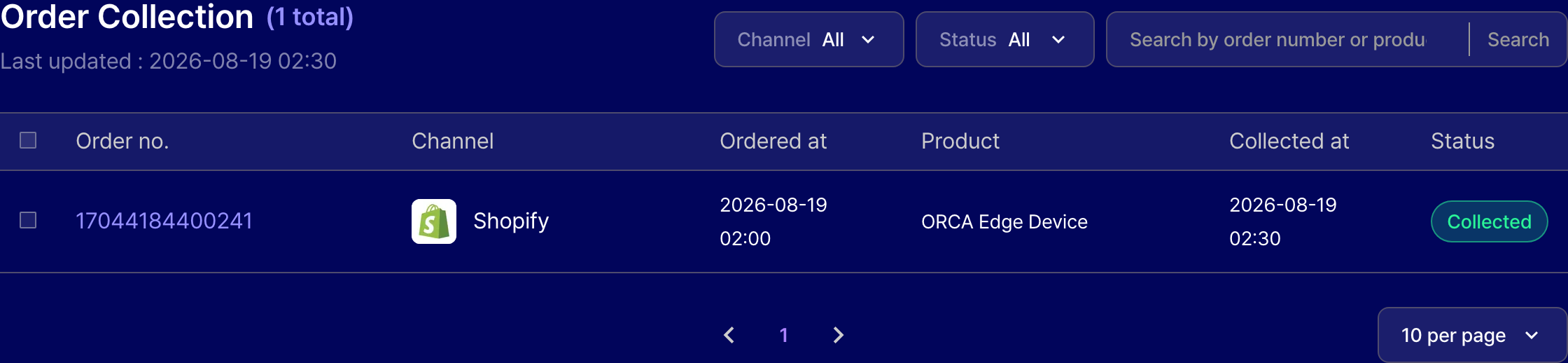
- After saving the channel, open Integration Management → Order Collection.
- Confirm the latest collected order: order number, sales channel, ordered at, product name, collected at, and collection status.
- If Shopify returns gid://shopify/Order/…, ORCA shows only the numeric ID. Hover the order number to see the original GID.
- Filter by channel or status, or search by order number and product name.
Security and operation
- Never expose the Client Secret in a document, chat, shell history, or log.
- Grant only the minimum scopes required for order reads.
- Platform encrypts the Client Secret and automatically reissues expiring tokens. ORCA never displays the plaintext secret or token.
- For app_not_installed, install the app on the entered Store from Dev Dashboard → app Home → Install app, approve its permissions, and test again.
- For shop_not_permitted, confirm that the app and Store are in the same Shopify organization and that the app is installed on that Store.