[Food Manufacturing] Food Inbound and Outbound History Case Study | ORCA MES
From scattered inbound and outbound ledgers to item and quantity history lookup
Food manufacturing sites had inbound and outbound records for raw materials and WIP split across ledgers and Excel files.
Warehouse and production teams searched separate records to match item codes with outbound quantities.
ORCA MES shows current stock by material and compares processed inbound and outbound history in one list by period and item.
- Check item code, category, inbound quantity, and outbound quantity on the same screen.
- View outbound quantities from source tasks such as work orders in the history list.
- Use the same information on PC, tablet, and mobile.
Reconciliation was delayed because inbound and outbound records differed by screen
This food manufacturer handled a connected flow of raw materials, WIP, and finished goods.
Inbound registration and work order outbound records remained separate, so matching quantities for the same item took time.
Staff had to switch between item names and handwritten ledgers to check outbound quantities.
A workflow that connects current stock with processed inbound and outbound history
Materials teams evaluating manufacturing MES need clear lookup criteria for items and quantities to compare shop floor records.
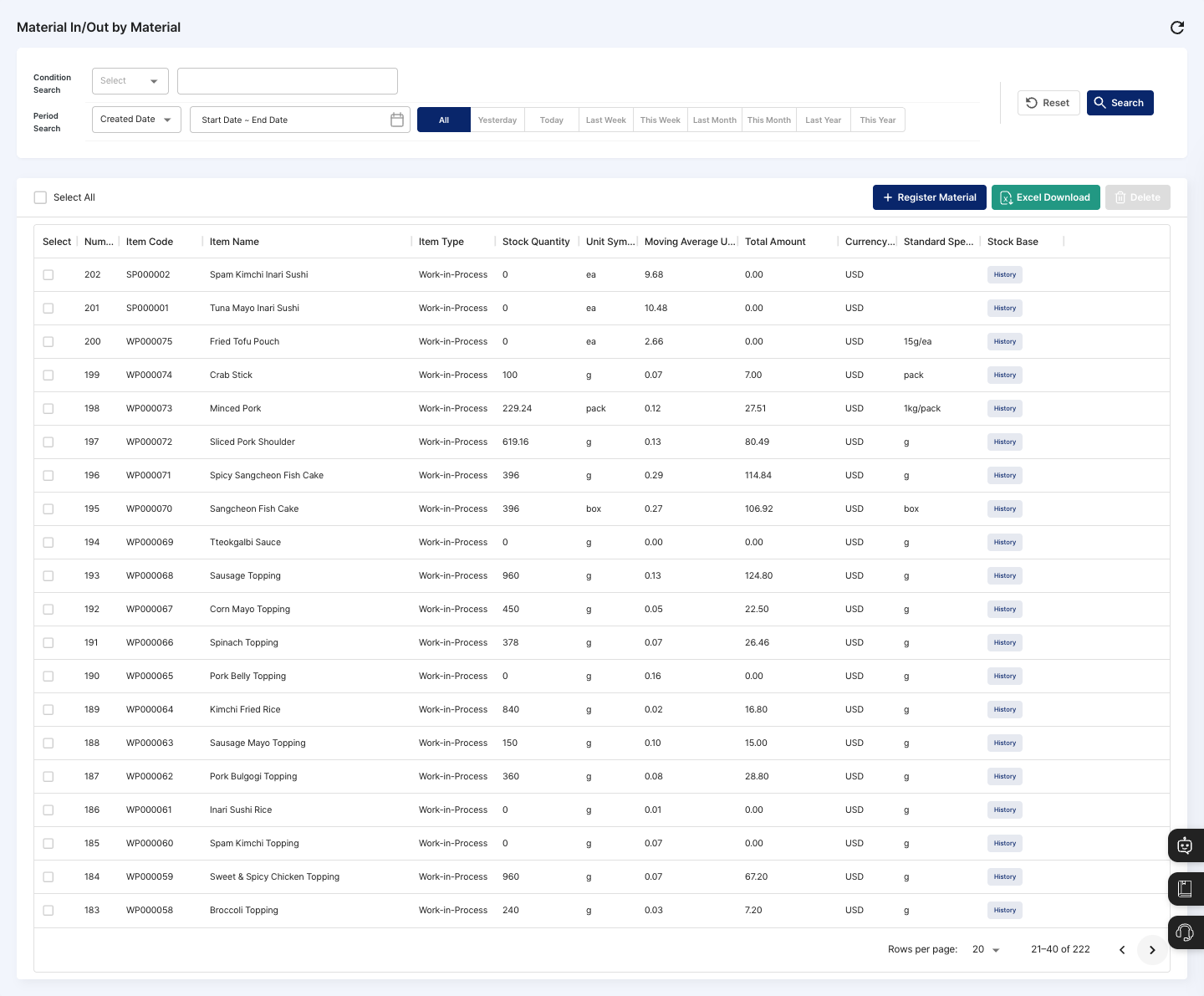
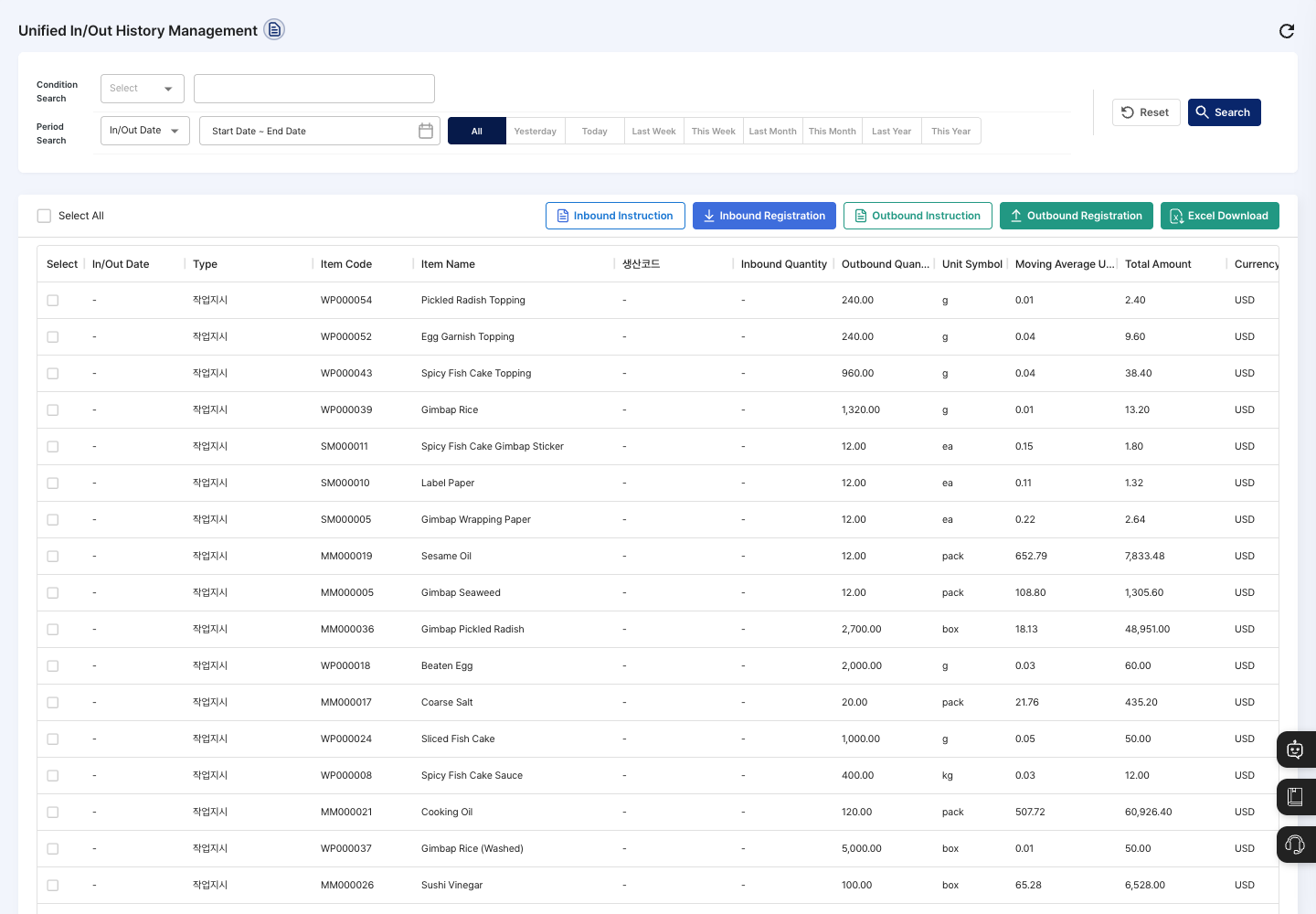
After ORCA MES adoption, they check current stock in Inbound/Outbound by Material and then review processed inbound, outbound, and transfer records in Integrated Inbound/Outbound History.
Key answer
- In Inbound/Outbound by Material Management, view item code, item name, item category, and stock quantity.
- In Integrated Inbound/Outbound History, review processed inbound, outbound, and transfer history together.
- Check category, inbound quantity, outbound quantity, unit, and amount in the list.
Application process
- Check the item and current stock quantity in Inbound/Outbound by Material Management.
- Narrow the list in Integrated Inbound/Outbound History by period, warehouse, material, and transaction type.
- Compare inbound/outbound date, category, item code, production code, inbound quantity, and outbound quantity in one list.
Confirmed feature scope
- Inbound/Outbound by Material Management is a screen for viewing material stock by item and registering inbound and outbound information.
- Integrated Inbound/Outbound History is for viewing processed inbound, outbound, and transfer history, not saving, editing, or deleting records.
- The history list shows date, category, item code, item name, production code, inbound quantity, outbound quantity, unit symbol, moving average unit price, total amount, and currency code.
- Users start each inbound or outbound task from inbound instruction, inbound registration, outbound instruction, or outbound registration.
- After applying lookup conditions, Excel download provides the current history list as a file.
Work comparison before and after ORCA adoption
| Work situation | Before | After ORCA adoption |
|---|---|---|
| Checking current stock | Teams searched item names and handwritten stock ledgers separately. | Inbound/Outbound by Material shows item codes and stock quantities. |
| Comparing outbound quantity | Work order outbound records and warehouse records were matched in files. | Integrated Inbound/Outbound History shows category and outbound quantity in one list. |
| Narrowing the history range | Period and warehouse conditions were reapplied for each ledger. | The history list is narrowed by period, warehouse, material, and transaction type. |
| Sharing with the shop floor | Office files were sent again to shop floor staff. | PC, tablet, and mobile show the same information. |
Frequently asked questions
- What is shown in Inbound/Outbound by Material Management?
- It shows item code, item name, item category, unit, and current material stock quantity. Inbound and outbound information is also registered on this screen.
- Which conditions are used in Integrated Inbound/Outbound History?
- Select period, warehouse, material, and transaction type for lookup. The list shows date, category, item code, production code, inbound quantity, and outbound quantity.
- Are quantities editable in Integrated Inbound/Outbound History?
- This screen does not save, edit, or delete history. Corrections are handled on the original work screen that created the history.