Cloud
Overview
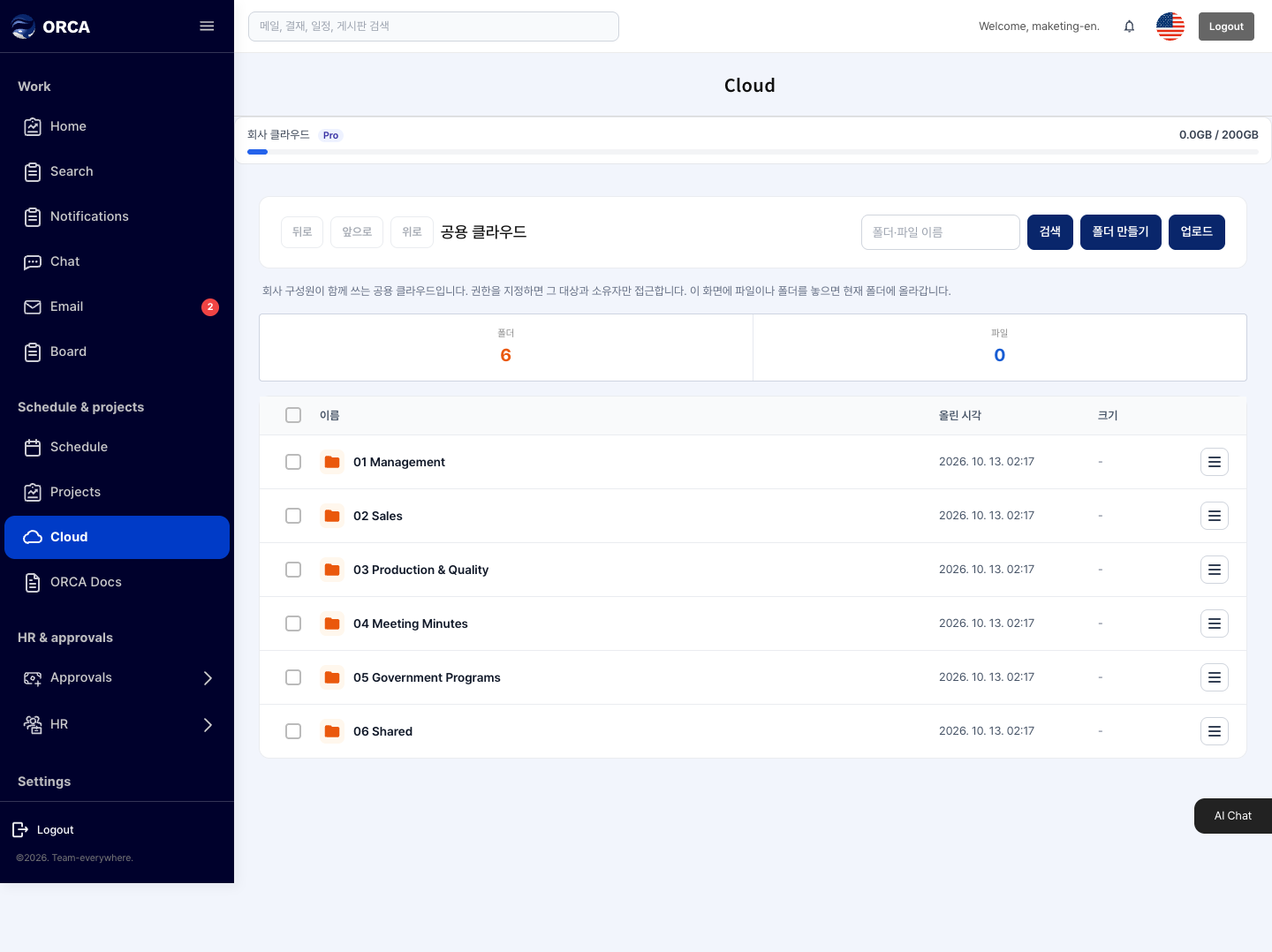
Create folders, upload Word, Excel, PowerPoint, Hangul, PDF and video files, and preview and share them.
Before you begin
- You need the Cloud menu permission.
Required information
- New folder: folder name
- Upload: file (large files are uploaded in parts automatically)
Save and processing checks
- Word (.docx), Excel (.xlsx), PowerPoint (.pptx), Hangul (.hwpx, .hwp), PDF and video open right in the preview window.
- Older .hwp files show text and tables only; fonts and images may be missing. Saving as .hwpx gives a more accurate preview.
- Click Edit document in the preview window to open the editor. If you have unsaved changes, you'll be asked to save first.
What you can do in the list
- Browse the folder tree; move, copy, rename and delete
- Share (people, external links, expiry date); version history and restore
- Search and check storage usage
Basic procedure
- New folder → enter a name
- Drag and drop files or click Upload → click a file to preview it