Sign in
This is the first screen you use to enter the ORCA MES PC admin screens. Enter your email, password, and company code to open your company's workspace.
Screen layout
The sign-in screen has three input fields and three buttons.
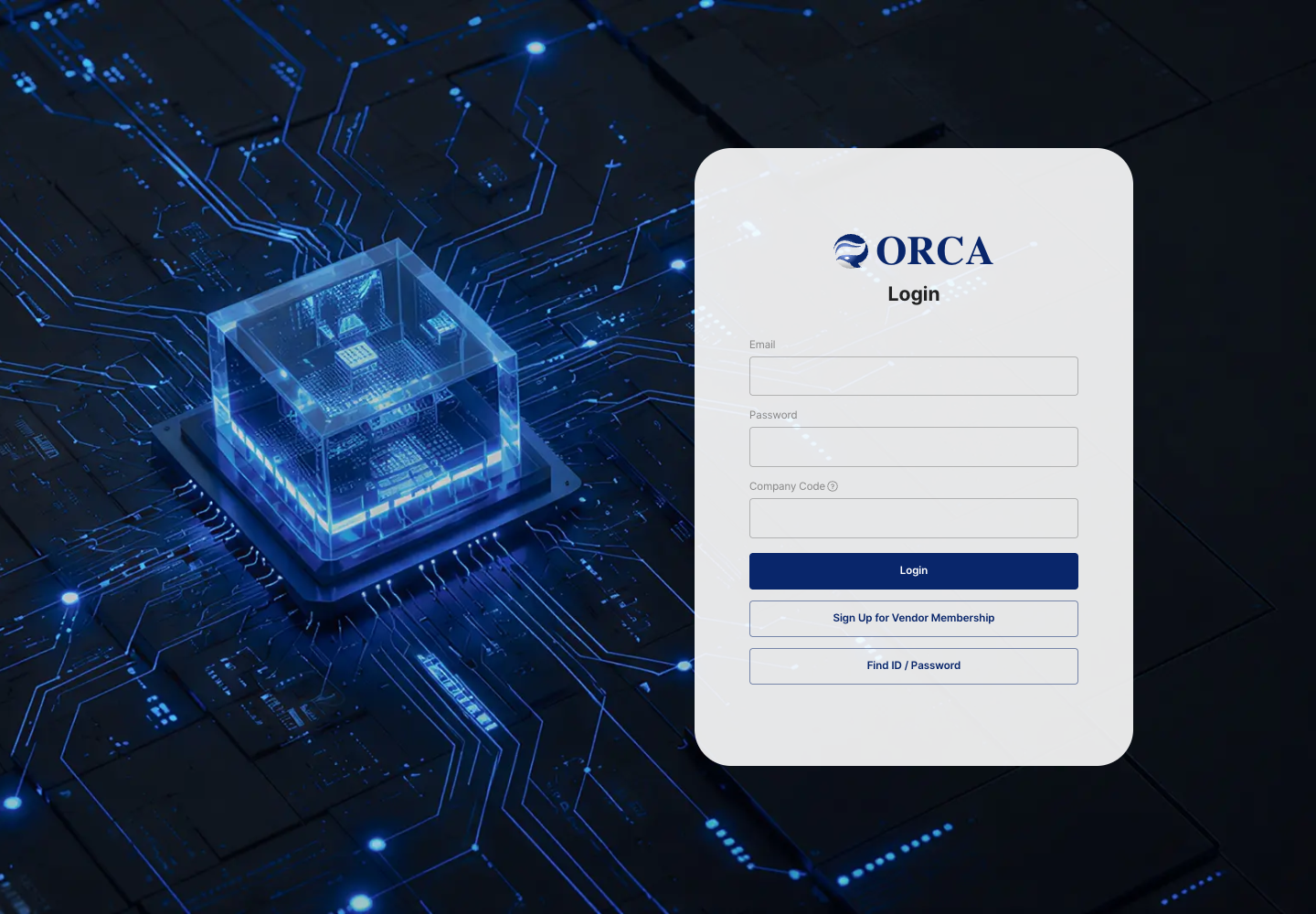
- Email: Enter the email address of your registered account.
- Password: Enter the password for that account.
- Company Code: The code that identifies the company you are signing in to. Hover over the question mark icon next to it to see how to find your company code. If you have signed in before in the same browser, the company code you used last is already filled in.
- Login: Signs you in with the information you entered.
- Sign Up for Vendor Membership: Opens the sign-up screen where you create a new company account.
- Find ID / Password: Use this when you cannot remember your email or password.
Sign in
- Enter your registered email address in the Email field.
- Enter your password in the Password field.
- Enter your company's code in the Company Code field. If it is already filled in, check that it is correct.
- Click Login.
- When sign-in is complete, the Dashboard opens. Check that the menus for your company and your permissions appear on the left.
When the Service Use dialog appears
If your company's service period (membership) has ended, you cannot sign in. The Membership has expired. message appears together with the Service Use dialog.
- Read the
The current overdue payment period has expired.message shown in the dialog. - Click OK to close the dialog.
- Ask your company administrator to check the payment status.
FAQ
Q. I entered my information and clicked the button, but I cannot sign in.
First check that all three fields are filled in. If you see a message such as User not found., Login information does not match., or Invalid corporation., check again that your email, password, and company code belong together. If the company code was already filled in, also check that it is not another company's code.
Q. I see User is not approved. or Account not accessible. Please contact the administrator.
Your account has not yet been approved for the admin screens, or it cannot access the admin screens. Ask your company administrator for approval and permissions.
Q. I see This site requires a subscription to ERP services.
Your company has not subscribed to this service. Ask your company administrator to check the subscription status.
Q. I see Membership has expired. together with The current overdue payment period has expired.
Your company's service period has ended, so you cannot sign in. Ask your company administrator to check the payment status.
Q. I cannot remember my email or password. Click Find ID / Password on the sign-in screen.
Related menus
- Shop-floor tablet sign-in — Sign in on a shop-floor tablet.
- Dashboard — See production and inventory status at a glance after signing in.
- User Management — Manage user accounts and permissions.