Production Plan Management
Use this screen to set up production plans that say what to make, when, and how much. The plans you save here are the starting point for later production work, such as work orders and material preparation.
Screen layout
The first screen of Production Plan Management lists the registered production plans.
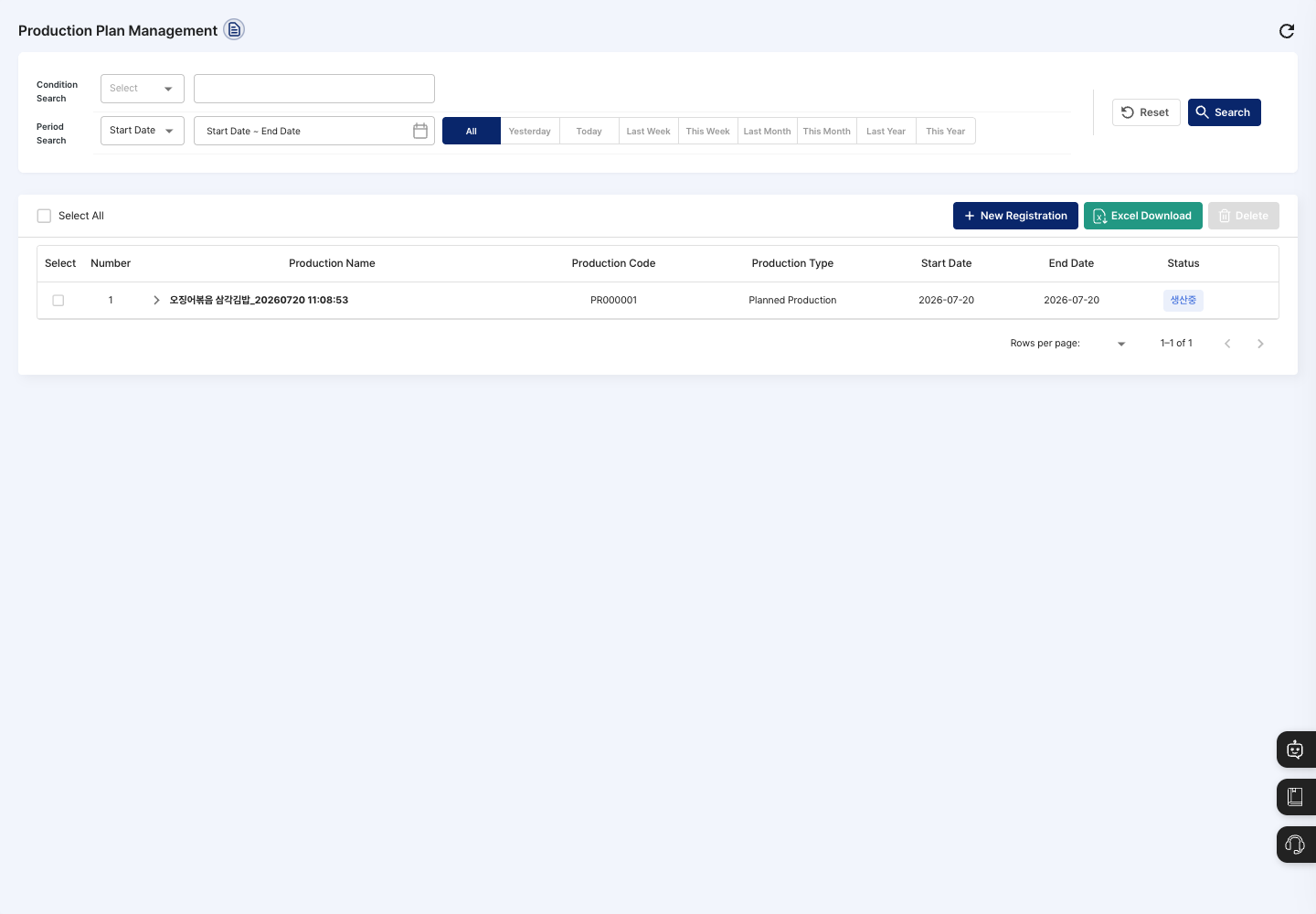
- List: Check the production name, production code, production type, start date, end date, and status. Click the arrow in front of a production name to expand the items in the plan, and click a row to open the production status by process window.
- New Registration: Create a new production plan. The registration screen has Simple Registration and Bulk Registration tabs.
- Excel Download: Download the list as an Excel file.
- Delete: Delete the plans you checked in the list.
Search production plans
- In Condition Search, choose a field and enter a keyword. You can search by production code, production name, production type (Planned Production/Ordered Production), or status (Before Production/Completed Production).
- In Period Search, choose Start Date, End Date, or Expected Delivery Date, and set the period. You can also use buttons such as
All,Today,This Week, andThis Monthto set it quickly. - Click Search to update the list. To return the conditions to their defaults, click Reset.
Register a production plan
Use Simple Registration for a plan for one item and Bulk Registration for several items.
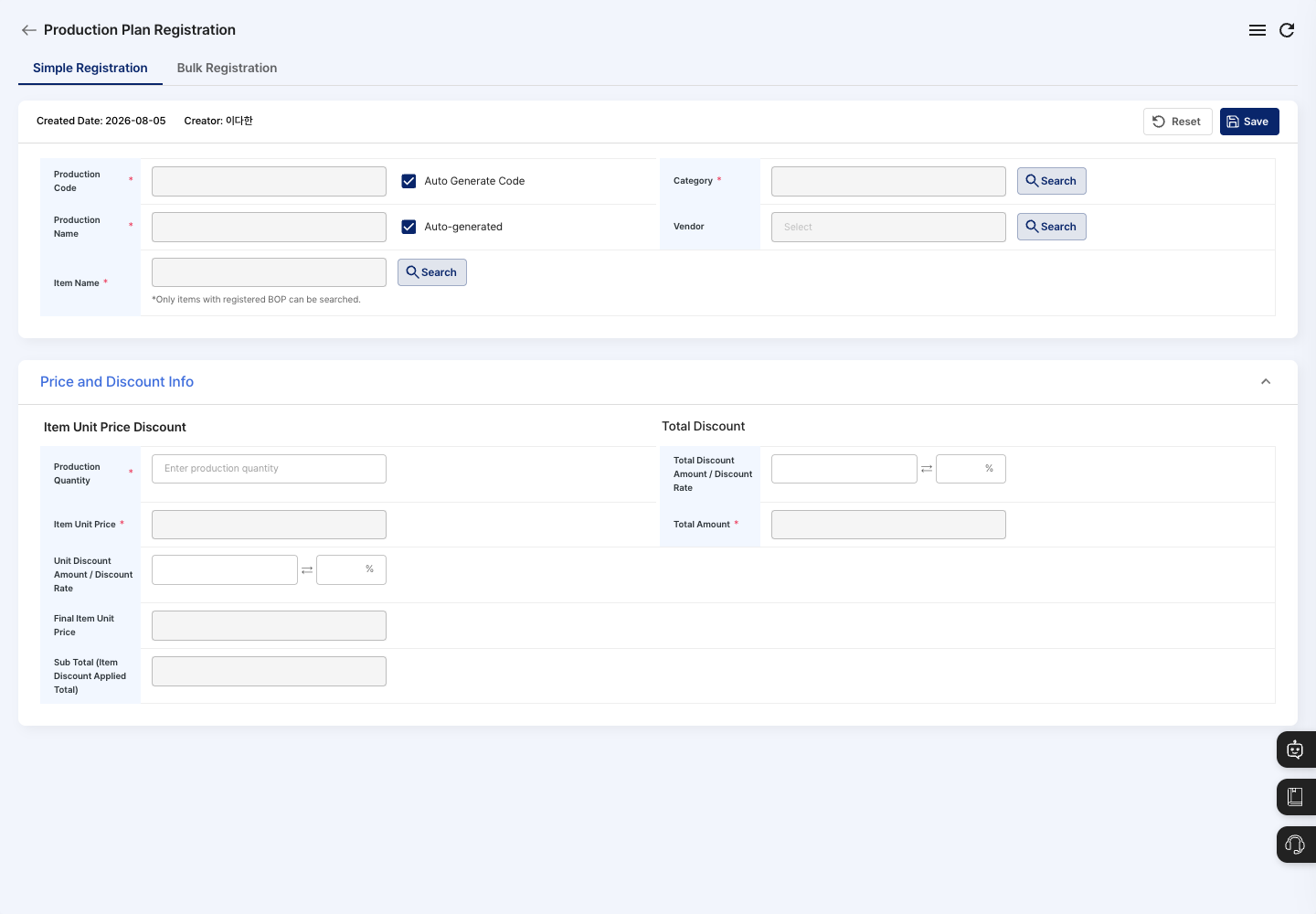
Register one plan with Simple Registration
- On the list screen, click New Registration and open the Simple Registration tab.
- If Auto Generate Code is checked, the Production Code is created automatically. To set it yourself, uncheck it and enter the code.
- Enter the Production Name. If Auto-generated is checked, it is filled in automatically.
- Click Search next to Item Name and choose the item to produce.
- Click Search next to Category and choose the work category.
- If the plan is for a specific vendor, click Search next to Vendor and choose the vendor. Otherwise, leave it empty.
- Under
Production Schedule, set the Expected Production Start Date and start time. The expected production completion date and production lead time are shown as well. - Under
Price and Discount Info, enter the Production Quantity, and check the item unit price, discount, and total amount. If needed, enter a unit price discount or a total discount amount or discount rate. - Click Save in the upper right, then click Confirm in the
Do you want to register?confirmation window. - Check the production code and BOP shown in the registration complete window, then click Confirm to return to the list.
Register several plans with Bulk Registration
- On the registration screen, open the Bulk Registration tab.
- Under
Select Bulk Production Type, choose Planned Production (MPS).Make to Order (MTO)is in preparation and cannot be selected. - Click Import Excel to download the template, fill it in, and then load the Excel file.
- Click Search next to Work Category to choose a category, and select the Shipment Type.
- Check and confirm the plan of each loaded item one by one.
- Check that there are no errors or warnings, then save. When it is done, a message tells you how many plans were registered in total.
View details and edit
- Click a production plan row in the list to open the production status by process window on the right.
- Check the product name, production plan name, total production quantity, and, for each process, the production date, outputs, production quantity, time required, and person in charge. You can also see the materials and required quantities for each output.
Delete a production plan
- In the list, check the production plan you want to delete.
- Click Delete.
- Click Delete in the
Are you sure you want to delete?confirmation window, and theDelete completed.message appears.
FAQ
Q. The item I want to make does not appear in the item search. Only items with a BOP registered appear. Register the item's process sequence first in BOP Registration.
Q. It will not save. Check that you chose an item and a work category, that the production quantity is 1 or more, that you entered the expected production start date and start time, and that you entered a production code if you turned off Auto Generate Code.
Q. Bulk Registration will not save. If any loaded item still has an unconfirmed plan, a message tells you how many items are still waiting for a plan. Confirm the plan for every item, and check that you also chose a work category and shipment type.
Q. I think the same plan was entered twice. Saved plans affect work orders and material preparation. Before registering, search the list to check whether a plan for the same item and schedule already exists.
Related menus
- BOM Registration — Set the basis for calculating the materials a plan needs.
- BOP Registration — Register the process sequence of an item. An item needs a BOP before you can choose it in a plan.
- Work Category Registration — Manage the work categories you assign to plans.
- Order Management — Create production plans automatically from confirmed sales orders.
- Work Completion — Enter results for planned processes and mark them as complete.