Currency Settings
This screen sets which currency amounts are shown in, and lets you add and manage currencies that are not in the list. The currencies and exchange rates set here can affect unit price entry, amount display, and exchange rate calculations.
Screen layout
On the Currency Settings screen, choose the display currency and FX policy, then save.
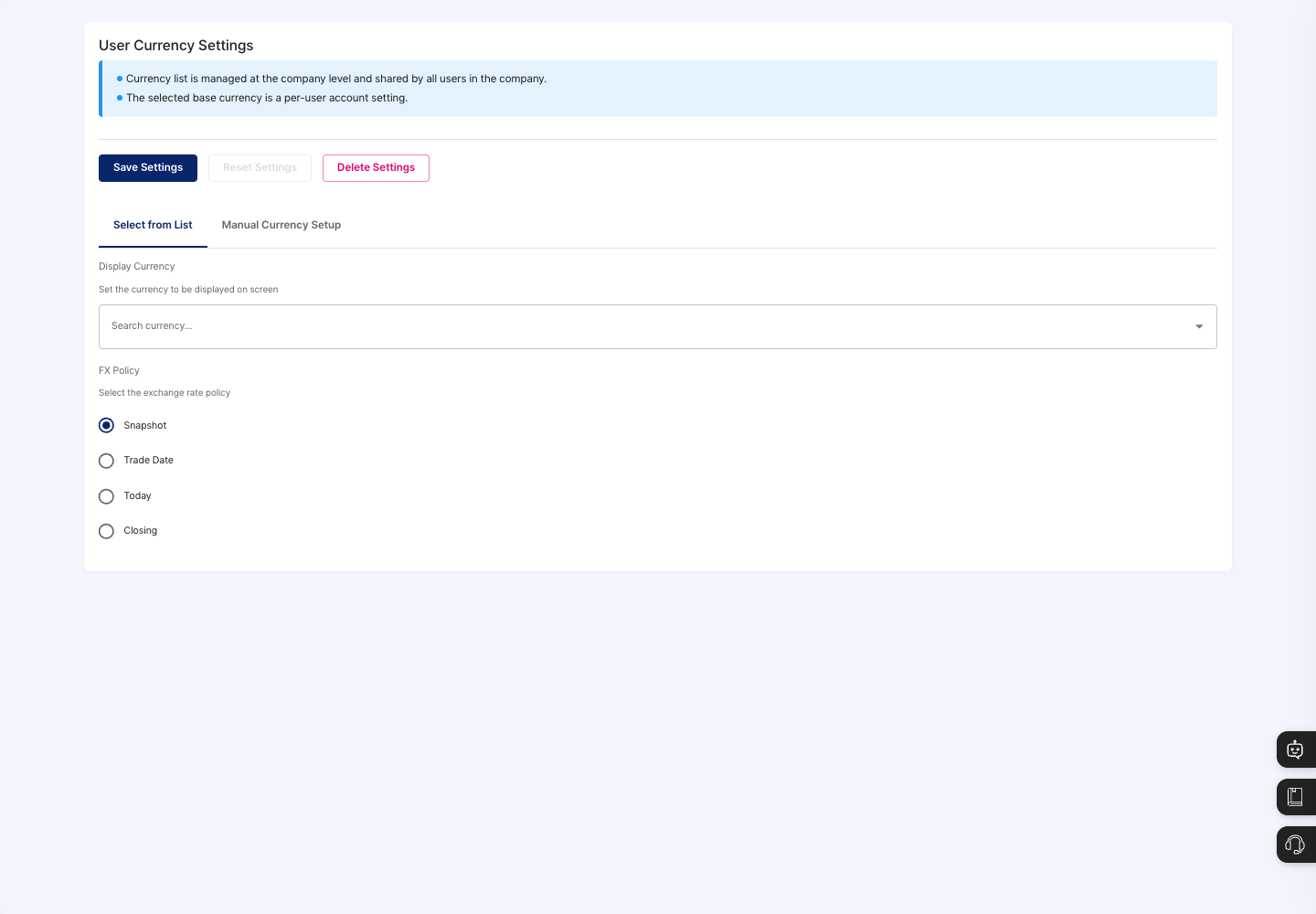
- Notice: The currency list is managed per company and shared by all users in the same company. The selected base currency, however, is a setting for each user account.
- Current settings: If settings have been saved, the currency code, currency name, symbol, and FX policy are shown.
- Save Settings / Reset Settings / Delete Settings: Save the currency settings you chose, revert to the saved settings, or delete them.
- Select from List tab: Choose the display currency from the registered currencies.
- Manual Currency Setup tab: Shows the list of currencies your company added itself. Here you add, edit, and delete currencies, and save a chosen currency as the display currency.
- Display Currency: Search for and choose the currency to show on screens.
- FX Policy: Choose how exchange rates are applied:
Snapshot,Trade Date,Today, orClosing. The default isSnapshot.
Set the default currency
- Click the Select from List tab.
- In Display Currency, search for and choose a currency. The list shows currencies in the format
Code - Name (Symbol). - Choose the FX Policy.
- Click Save Settings. When
Currency settings saved successfullyis shown, you are done. - On the main screens that show amounts, such as item unit prices, in/out, and production, check that the currency and decimal places are shown correctly.
Add a currency yourself
- Click the Manual Currency Setup tab.
- Click Add Currency.
- Enter the Currency Code as three uppercase letters. Lowercase letters are changed to uppercase. Example:
VND - In the Exchange Rate (1 USD = ?) field, enter this currency's value equal to 1 USD.
- Check the Effective Date. The default is today.
- If needed, enter the currency name, symbol, and decimal places (default
2). - Save. When
Custom currency added successfullyis shown, the new currency appears in the list. - To use this currency as the display currency, select it in the list and click Save Settings at the top.
Delete currency settings
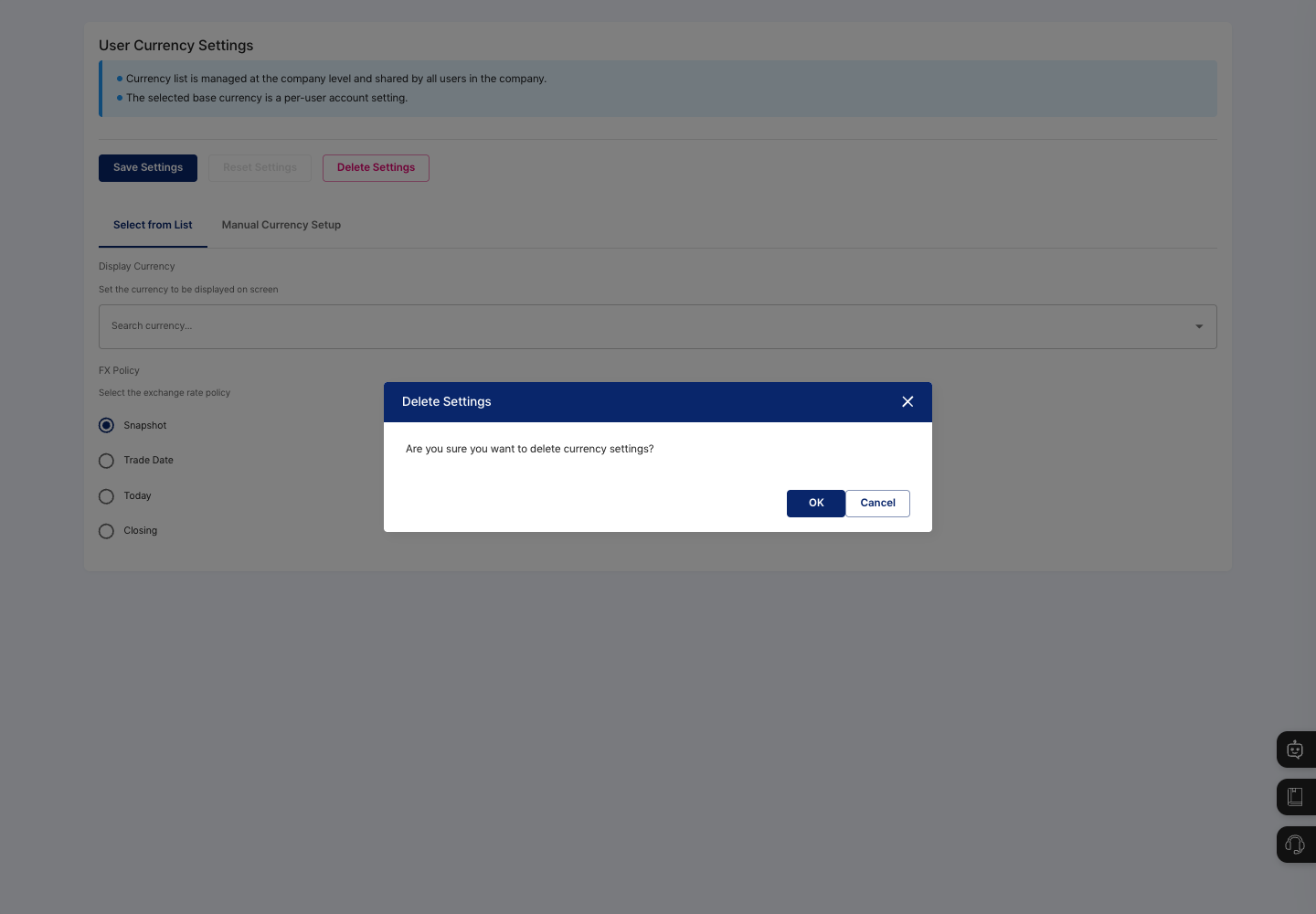
- Click Delete Settings.
- When the confirmation dialog shows
Are you sure you want to delete currency settings?, click Confirm. To stop, click Cancel. - When
Currency settings deleted successfullyis shown, the display currency selection is cleared and the FX policy returns toSnapshot. The company currency list is not deleted.
FAQ
Q. I changed the currency, but other employees' screens did not change. This is normal. The selected base currency is a setting for each user account, so each user must set it in their own account. The currency list itself, however, is shared by the whole company.
Q. A new currency is not saved. Check that the currency code is three uppercase letters, the exchange rate is greater than 0, and you entered the effective date. If saving fails, the reason is shown in a message dialog. If you entered decimal places, also check that the value is between 0 and 10.
Q. I want to change the code of a registered currency. You cannot edit the currency code. Register the currency again with the correct code.
Q. I want to change the exchange rate of a currency I added myself. On the Manual Currency Setup tab, click View Details for the currency, then enter a new exchange rate and effective date with Add Exchange Rate. You can see the exchange rates entered so far in Exchange Rate History.
Q. Does Delete Settings also delete the currencies I added myself? No. Delete Settings deletes only the display currency setting of your account. The currency list shared by the company stays as it is.
Related menus
- Exchange Rates — Check the exchange rate of each currency.
- New Item Registration — Choose a currency when you enter item unit prices.