Shipment Order Management
Use this screen to register shipment orders that say when, which items, and how much to ship, and to manage their shipment status. You can register orders one at a time or register many at once on a single screen.
Screen layout
The first screen lists the registered shipment orders.
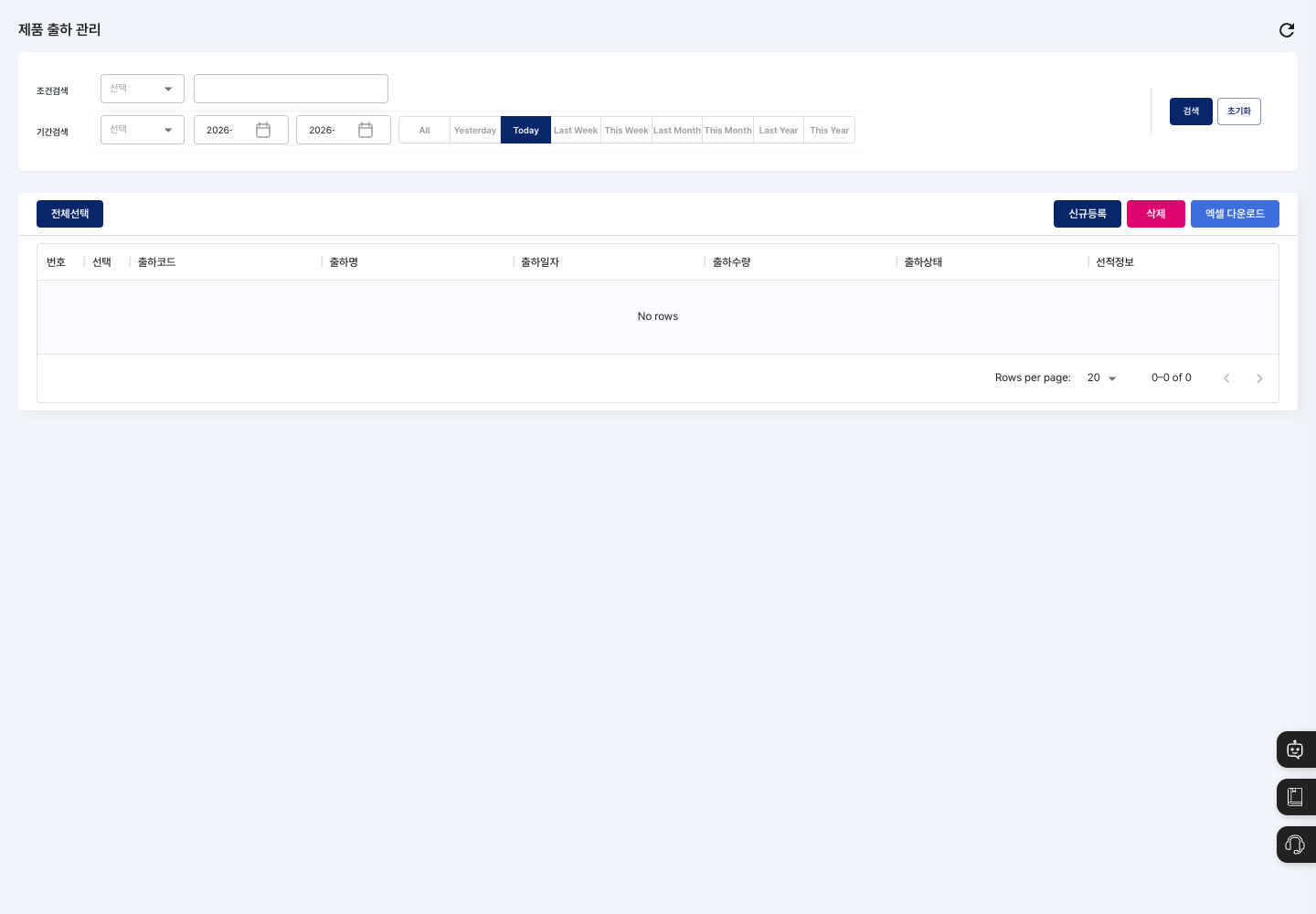
- Condition Search: Search by shipment name, vendor, or shipment status (
Pending Shipment/Shipment Completed). - Period Search: Choose expected shipment date, created date, or modified date as the basis and set a period. Use the
Yesterday,Today,Last Week,This Week,Last Month,This Month,Last Year, andThis Yearbuttons to pick a range quickly. If you do not choose a basis, the search runs regardless of the period. - List: Shows the shipment code, shipment name, shipment date, shipment quantity, shipment status, and shipment info.
- New Registration: Register a new shipment order.
- Delete: Delete the selected shipment orders.
- Excel Download: Download all shipment orders as an Excel file, regardless of the search conditions.
Search shipment orders
- Set the conditions you want in Condition Search and Period Search. You can also leave them all empty.
- Click Search to refresh the list.
- To return the conditions to their defaults, click Reset.
Register a shipment order
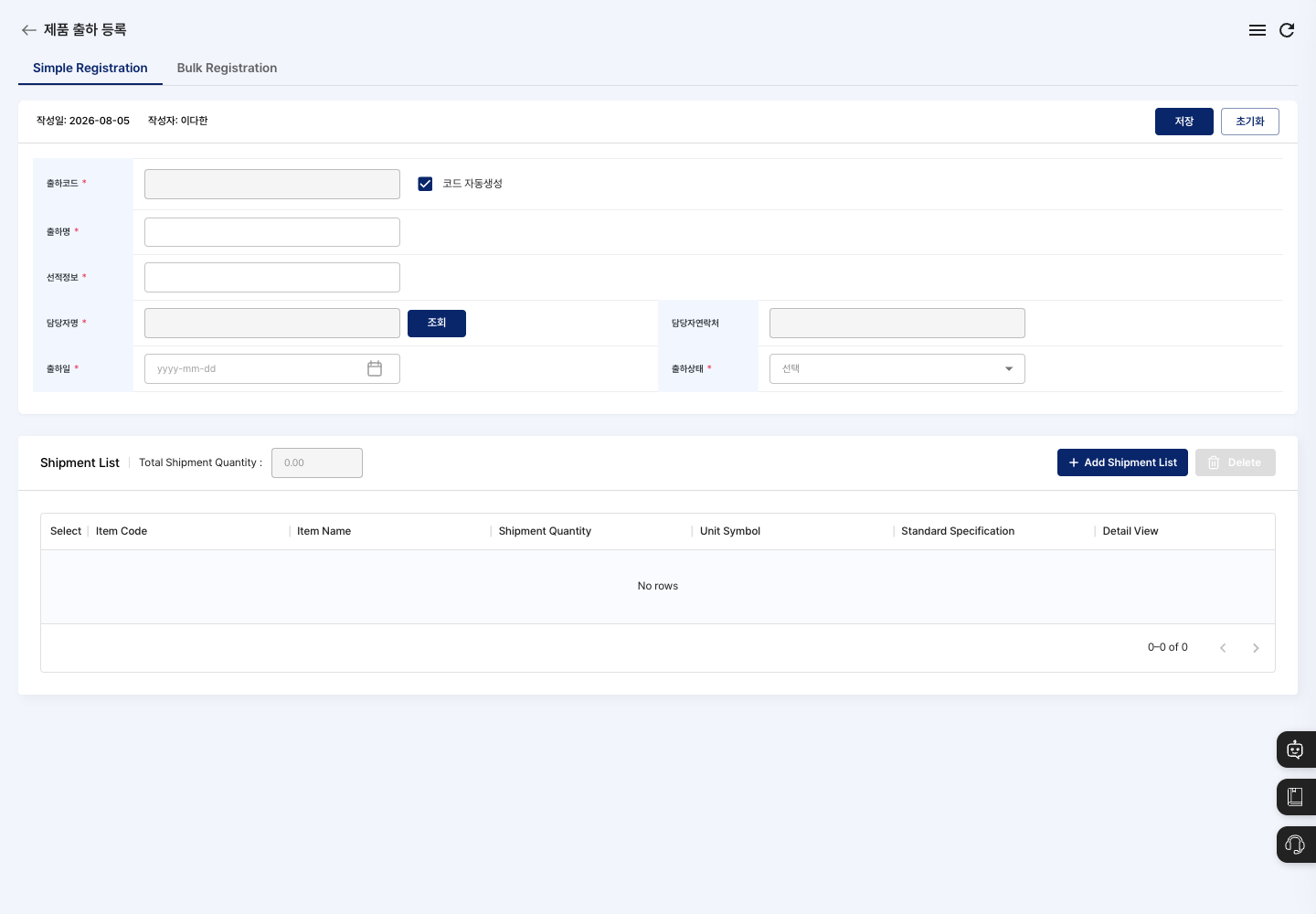
On the registration screen (Product Shipment Registration), choose a registration method from the tabs at the top.
- Simple Registration: Use this to create one shipment.
- Bulk Registration: Use this to add several shipments on one screen and register them all at once.
Follow these steps for Simple Registration.
- On the list screen, click New Registration.
- Select the Simple Registration tab.
- Set the Shipment Code. Auto Generate Code is checked by default, so you do not need to enter it; the code is added automatically when you save. To enter it yourself, uncheck the box.
- Enter the Shipment Name and Shipment Info.
- Click Search next to Manager Name and choose the manager. Check that the Manager Mobile shown is correct.
- Choose the Shipment Date and Shipment Status.
- Click Add Shipment List. In the
Select Shipment Itemwindow, chooseInbound Status BasisorOutbound Status Basisand select the items. ForInbound Status Basis, choose warehouses with Select Storage and enter the shipment quantity for each warehouse. ForOutbound Status Basis, enter the shipment quantity. - Check the Total Shipment Quantity on the screen and the unit and specification of each item.
- Click Save. Click Confirm in the
Registration completed.window to return to the list. Check the shipment code and shipment status in the list.
View details and edit
- Click a shipment order in the list to open the
Product Shipment Detailsscreen. You can only view the basic information and shipment list here. - Click Edit.
- On the
Edit Product Shipmentscreen, change the Shipment Status (Pending Shipment/Shipment Completed). - Click Save, then click Confirm in the
Do you want to save changes?window. After saving, you return to the list.
Delete a shipment order
- In the list, check the Select box of the shipment order you want to delete.
- Click Delete.
- Click Delete in the
Are you sure you want to delete?window.
FAQ
Q. I clicked Save, but the order was not registered. Check whether any required field (Shipment Name, Shipment Info, Shipment Date, Shipment Status, and Manager Name for Bulk Registration) is empty, whether you added at least one shipment item, and whether each shipment quantity is greater than 0.
Q. A shipment order disappeared on its own. If you delete a product that was part of a shipment in Product In/Out Management, that product is removed from the shipment. If no items are left, the shipment is deleted as well.
Q. I cannot see a shipment in the list. If you chose a Period Search basis (expected shipment date, created date, or modified date), check that the period is correct. Click Reset to search again without conditions.
Related menus
- Product In/Out Management — Check stock by warehouse for the products to ship.
- Product Shipment Status — See the shipment status at a glance.
- Shipment Type Management — Manage the types used for shipments.