Material in/out — barcode
On this shop-floor screen, you scan a material's barcode with the tablet camera to find the item and register new inbound or outbound records. Check the item, split the quantity across warehouses, and save to apply it to stock by warehouse.
Screen layout
The camera view and a frame appear in the middle of the screen, with Manual Input, the capture button, and Open App Scanner below. While the camera turns on, Preparing the camera... is shown, and when it is ready, Recognizing barcode... appears.
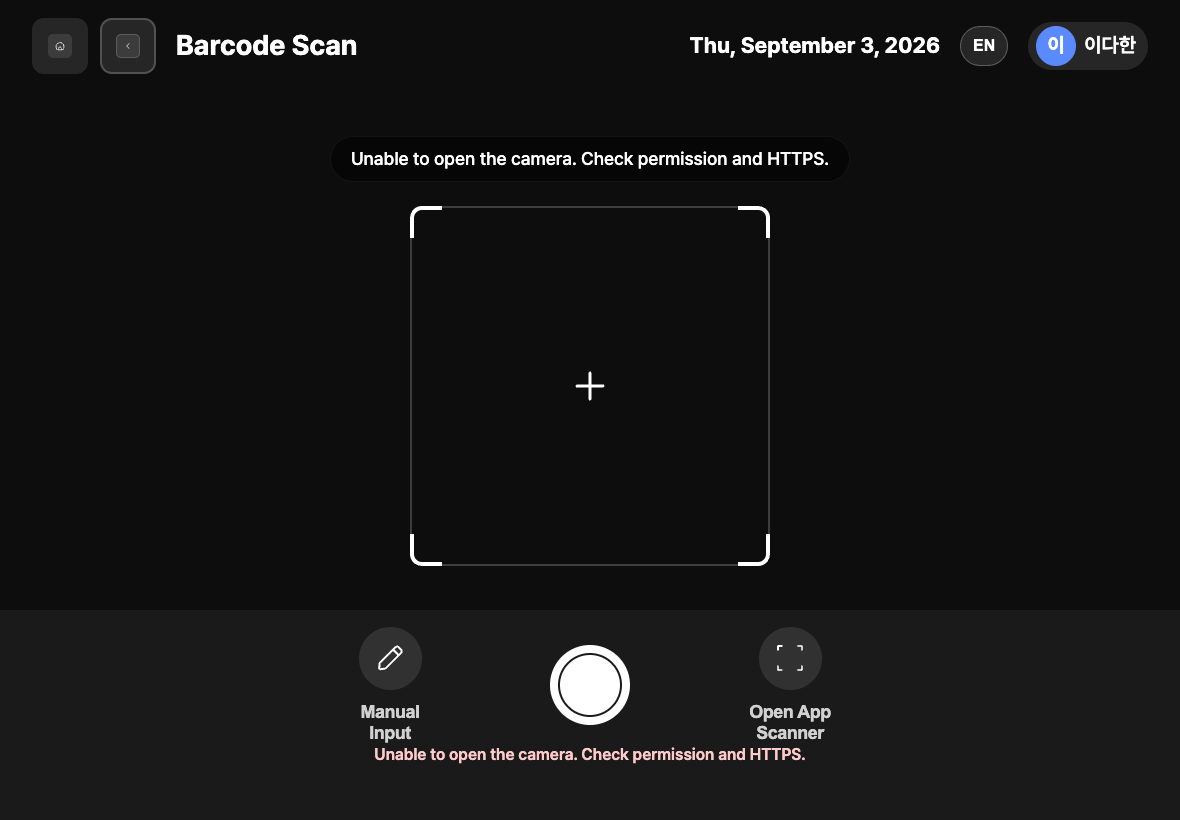
- Camera view: Fit the barcode inside the frame.
- Capture button: The round button in the middle. The barcode is also recognized automatically when it enters the frame.
- Manual Input: When you cannot use the camera, type the barcode value by hand and tap Confirm.
- Open App Scanner: Scan with the app's scanner in the shop-floor app. In a browser,
The app scanner is not available.appears.
The scanned barcode value is used to find the item with the same item code. The steps are Barcode result → Inbound location (Outbound location for outbound) → Done.
Register with a barcode
- In the Material in/out list, tap New inbound or New outbound.
- In the method selection window, tap Barcode scan.
- Fit the barcode inside the frame and scan it. If it is hard to scan, enter the barcode value with Manual Input.
- Check the item found and its quantity, price, planned date, and inbound date (outbound date), correct them with Edit if needed, and tap Next.
- Add warehouses with Add inbound location (or Add outbound location), and check the Current stock in each warehouse row.
- Split the quantity so that the total across warehouses equals the process quantity.
- Tap Next to save. On the completion screen, tap View details or Go to list, or wait 7 seconds to return to the list automatically.
FAQ
Q. The barcode does not scan well. Move to a bright place, focus the camera, and tap the capture button to scan again. If it still does not work, enter the barcode value with Manual Input.
Q. It says No item matches the scanned barcode.
Check the barcode value again. If the value is correct, ask someone to check that an item with an item code equal to that value is registered in New Item Registration on the office PC admin screen.
Q. The camera does not turn on.
If Unable to open the camera. Check permission and HTTPS. appears, check in the tablet settings that camera use is allowed and that you are connected over a secure connection. You can also continue without the camera by using Manual Input.
Q. It says Allocated quantity exceeds the process quantity.
The total quantity split across warehouses is larger than the process quantity. Reduce the quantities by warehouse so the total matches.
Q. It says The process date cannot be later than today.
Choose today or an earlier date. For new registrations, the inbound date (outbound date) cannot be earlier than the planned date, so check both dates together.
Q. For outbound, it says Material information is missing.
Outbound handles registered materials only. Ask someone to check that the material is registered in New Item Registration.
Related menus
- Material in/out list — View waiting and completed inbound and outbound records.
- Material in/out — manual entry — Choose an item from the list to register.
- Material in/out — AI recognition — Take a photo of a label to read the item.
- New Item Registration — Register the items linked to barcodes.