New Item Registration
This screen registers and manages every item your plant handles, such as finished products, semi-finished products, raw materials, sub-materials, work-in-process, and consumables. The item type, standard unit, unit prices, and partner information set here are used as the basis across BOM, inventory, and production work.
Screen layout
The first item screen lists the registered items. Set conditions and a period in the search area at the top to find the item you want.
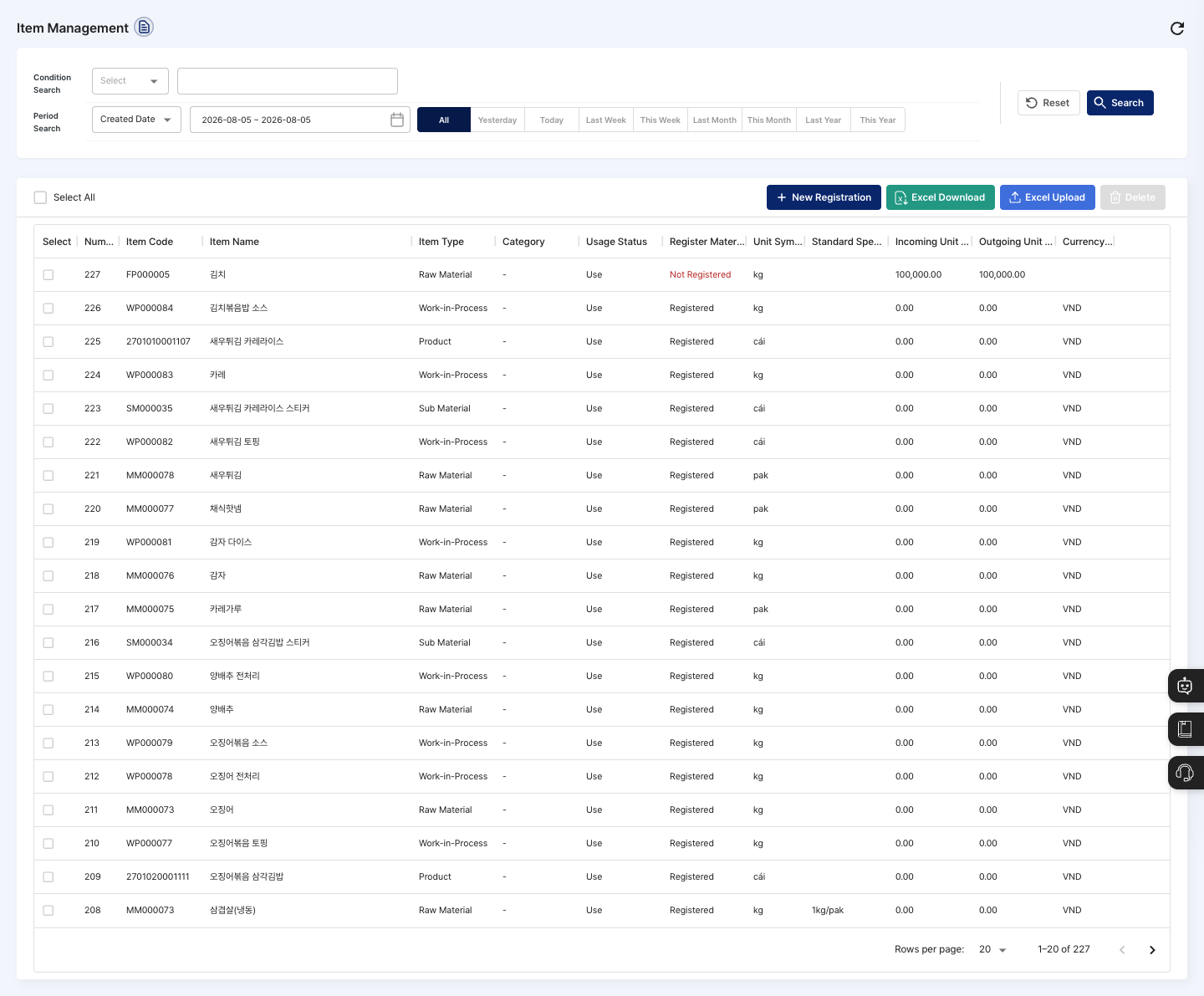
- Condition Search: Choose a search condition (item code, item name, item type, category, or standard specification) and enter a search term.
- Period Search: Choose a period based on the created date or modified date. You can set it quickly with buttons such as
All,Today,This Week, andThis Month. - List: Check the item code, item name, item type, category, usage status, material registration, unit symbol, standard specification, incoming unit price, outgoing unit price, and currency code. Click a row to open the detail screen.
- New Registration: Registers a new item in three steps:
Item Info→Register Material→Registration Complete. - Select All: Checks or unchecks all items on the current page at once.
- Excel Download / Excel Upload: Download the list as a file, or register several items at once from a file.
- Delete: Deletes the items checked in the list.
Register an item
- On the list screen, click New Registration.
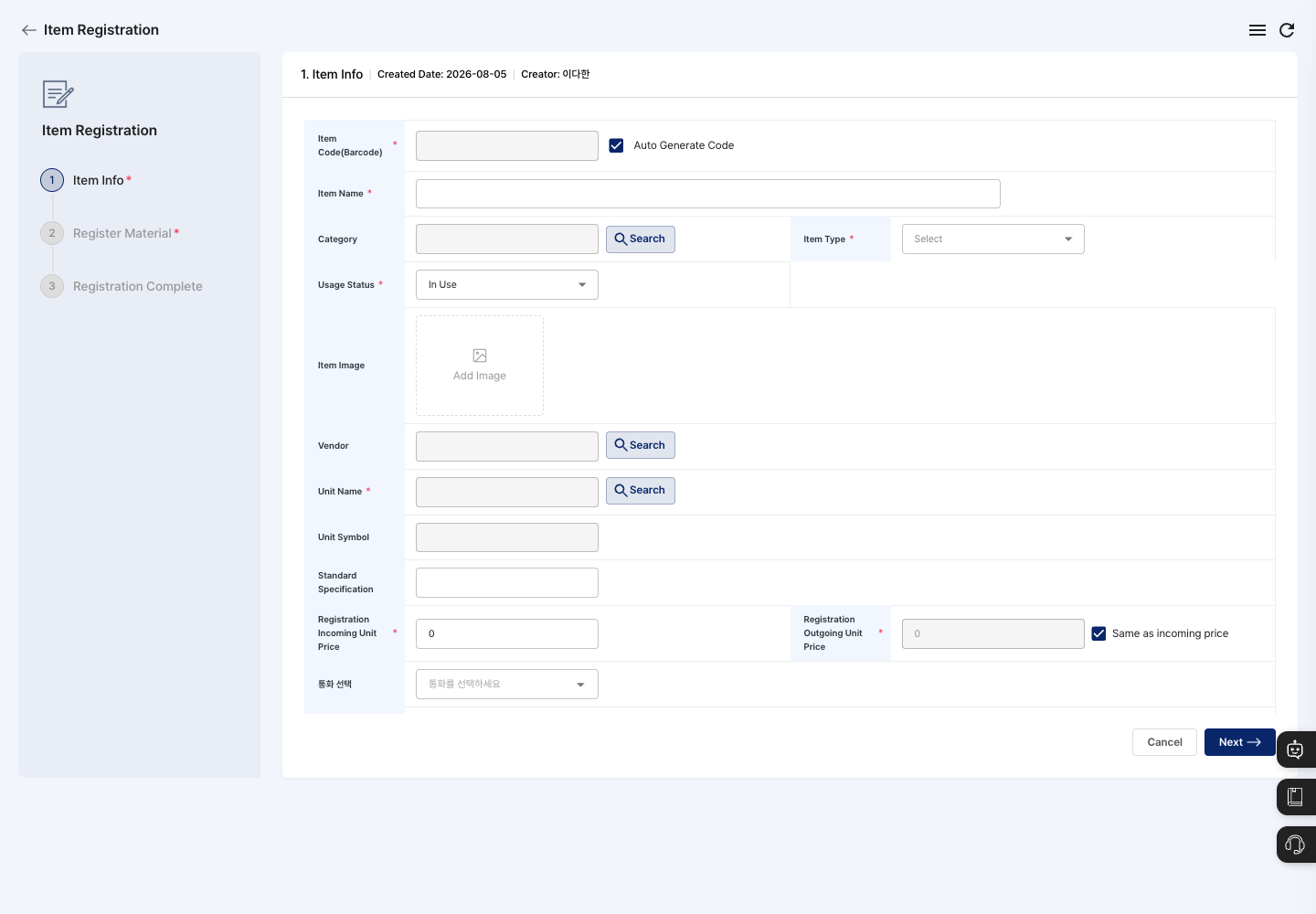
- Check the item code (barcode). Auto Generate Code is checked at first, so the code is created automatically when you save. To enter it yourself, uncheck it.
- Enter the Item Name.
- Choose the Item Type and Usage Status. Choose the item type from
Product,Semi-Product,Raw Material,Sub Material,Work-in-Process, andConsumables. The default usage status isIn Use. - Click Search next to Unit Name and choose the standard unit. The unit symbol is filled in to match the selected unit.
- If needed, choose the Category and Vendor with Search, and enter the item image and standard specification.
- Enter the Registration Incoming Unit Price and Registration Outgoing Unit Price. If the two amounts are the same, select Same as incoming price. If needed, choose a currency in Select Currency, then confirm in the change confirmation dialog.
- Click Next to go to the
Register Materialstep. - If the item should also be managed as a material, change Material Registered to
Registered. In the Storage List that appears, use Add Storage to choose where the initial stock will be kept, and enter the Material Quantity for each storage. To register only the item, leave it asNot Registered(the default). - Click Registration Complete, then confirm in the
Do you want to register?dialog. - When you see the registration complete message, you return to the list. Search by item code or item name and check that the new item appears.
Register many items at once with Excel
- On the list screen, click Excel Upload.
- In the window, click Download Template to download the registration template.
- Fill in the item information to match the template. The shaded example rows are not uploaded.
- Choose the completed file with Attach File, then click Save.
- When
Upload completed.is shown, the upload is done.
View details and edit
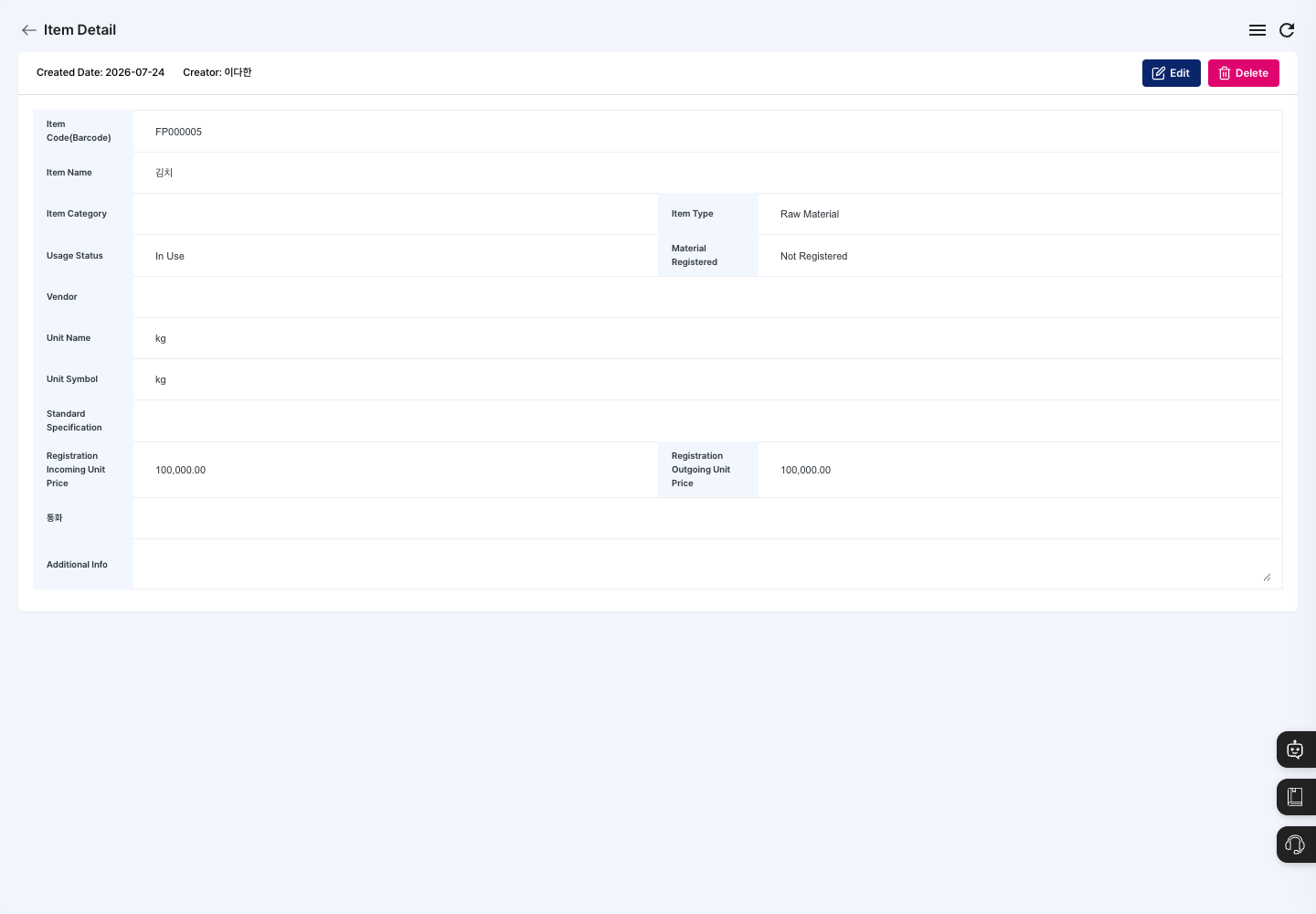
- Click an item in the list to open its detail screen.
- Check the item code, item type, material registration, unit, unit prices, currency, and additional info.
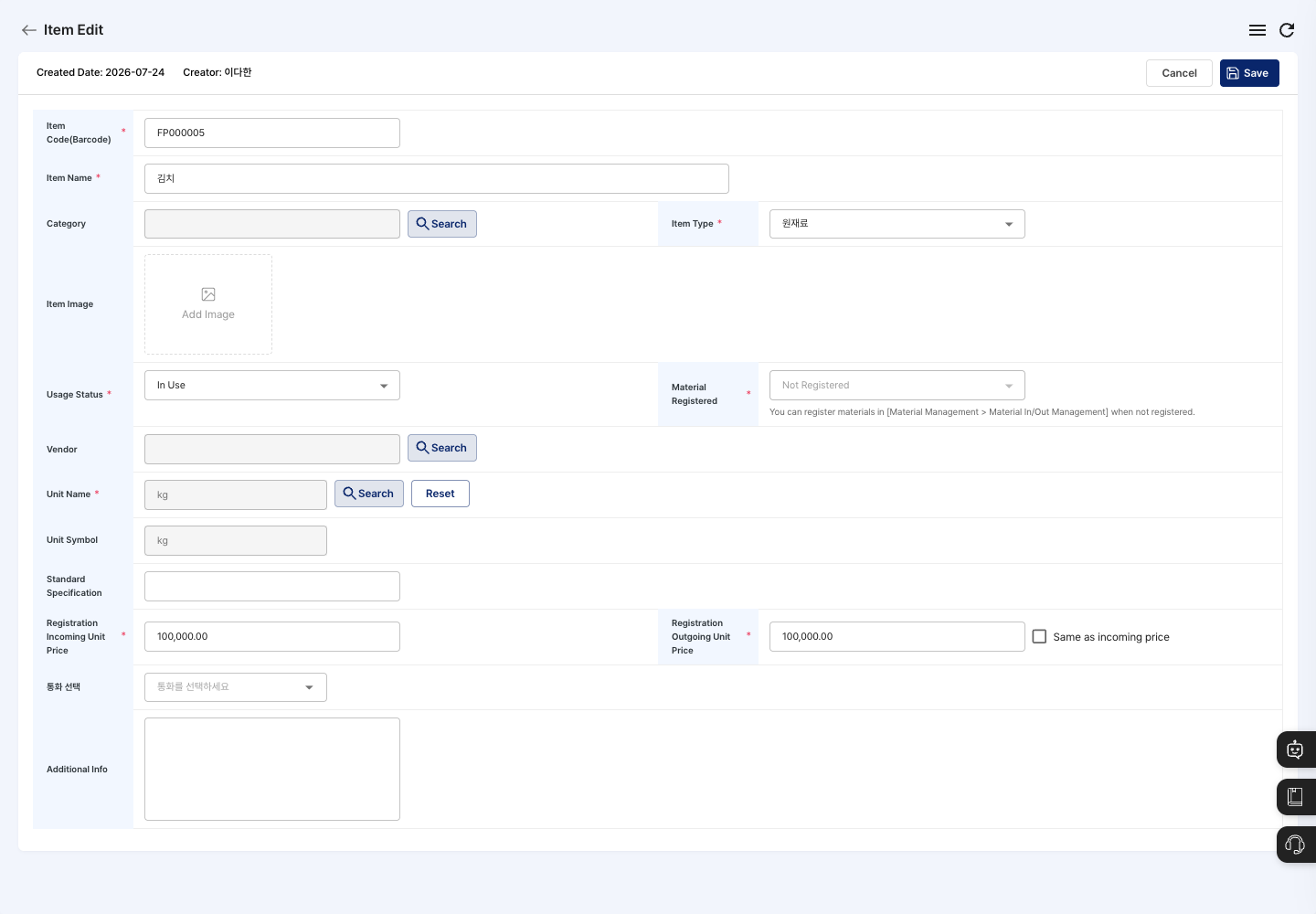
- To change anything, click Edit.
- Change the basic info or unit prices, click Save, and confirm in the
Do you want to save changes?dialog. When saving is complete, you return to the previous screen.
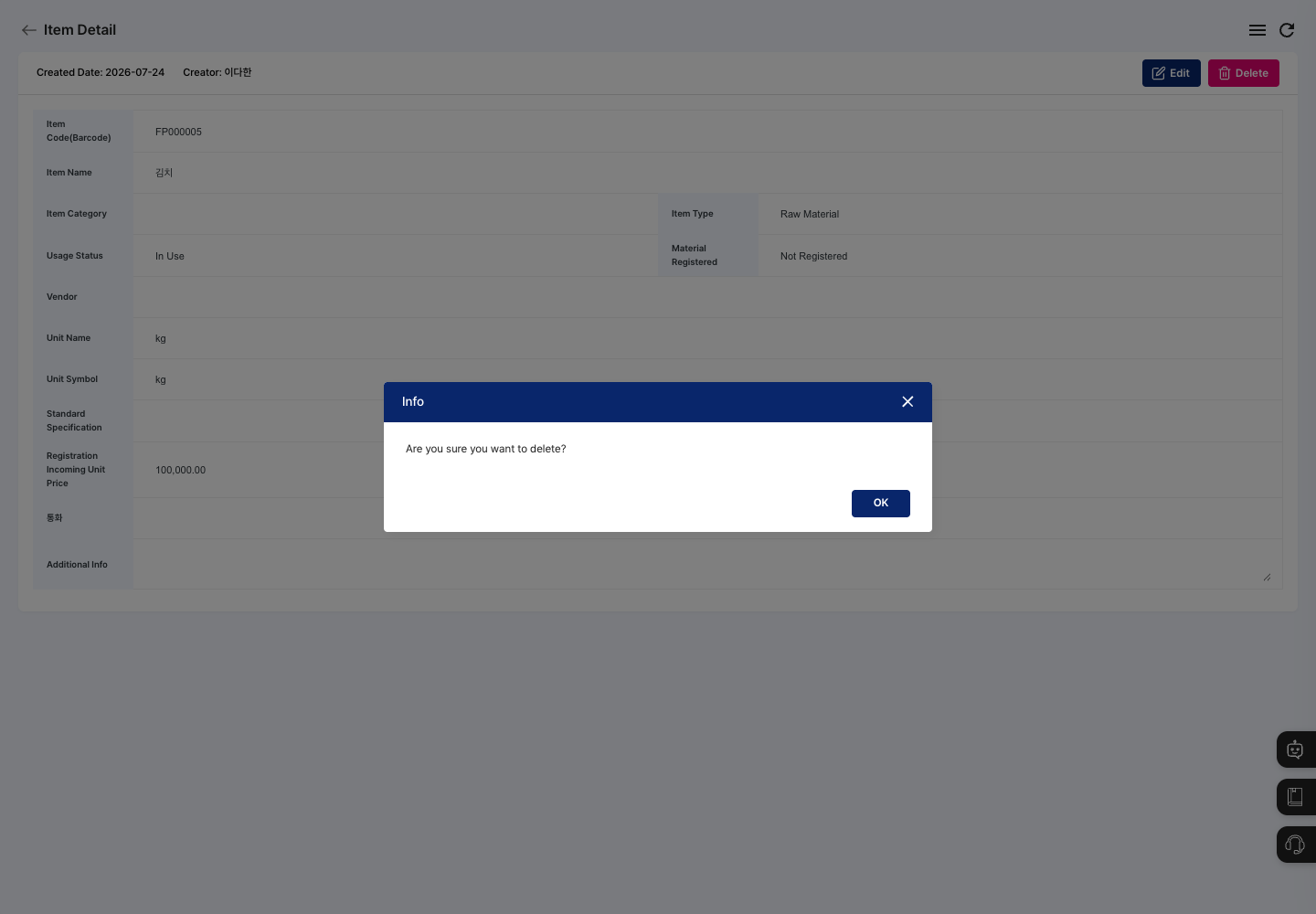
Delete an item
- In the list, check the item to delete, or open its detail screen.
- Click Delete.
- In the
Are you sure you want to delete?confirmation dialog, click Delete.
FAQ
Q. The unit I want is not in the Unit Name search. First register the unit in Standard Unit Management, then register the item again.
Q. Do I have to set the item code myself? No. Auto Generate Code is checked by default, so if you leave it as is, you can register without entering a code.
Q. I cannot go to the next step or save. Check the message in the dialog. If the item name, item type, unit name, incoming unit price, or outgoing unit price is empty, a message appears when you click Registration Complete. If you chose to register the item as a material, also check that there is at least one storage and that no storage has a quantity of 0.
Q. I cannot change Material Registered to Registered.
If the item type is Product, it cannot be registered as a material. Product cannot be registered as material. is shown.
Q. The incoming and outgoing unit prices are filled in with the same value. If Same as incoming price is selected, the outgoing unit price is filled in to match the incoming unit price. To use a different amount, clear the selection and enter the outgoing unit price yourself.
Related menus
- Standard Unit Management — Register the units to link to items first.
- Item Category Registration — Create categories to classify items.
- Partner Registration — Register the partners to link to items.
- Warehouse Registration — Manage the storages where initial material stock is kept.
- BOM Registration — Set the material structure of products using the registered items.