Item Category Registration
This screen creates the classifications used to group items by type. Dividing them into parent and child categories makes items easier to find and organize.
Screen layout
The category list is shown on the left of the screen, and information about the selected category is shown on the right.
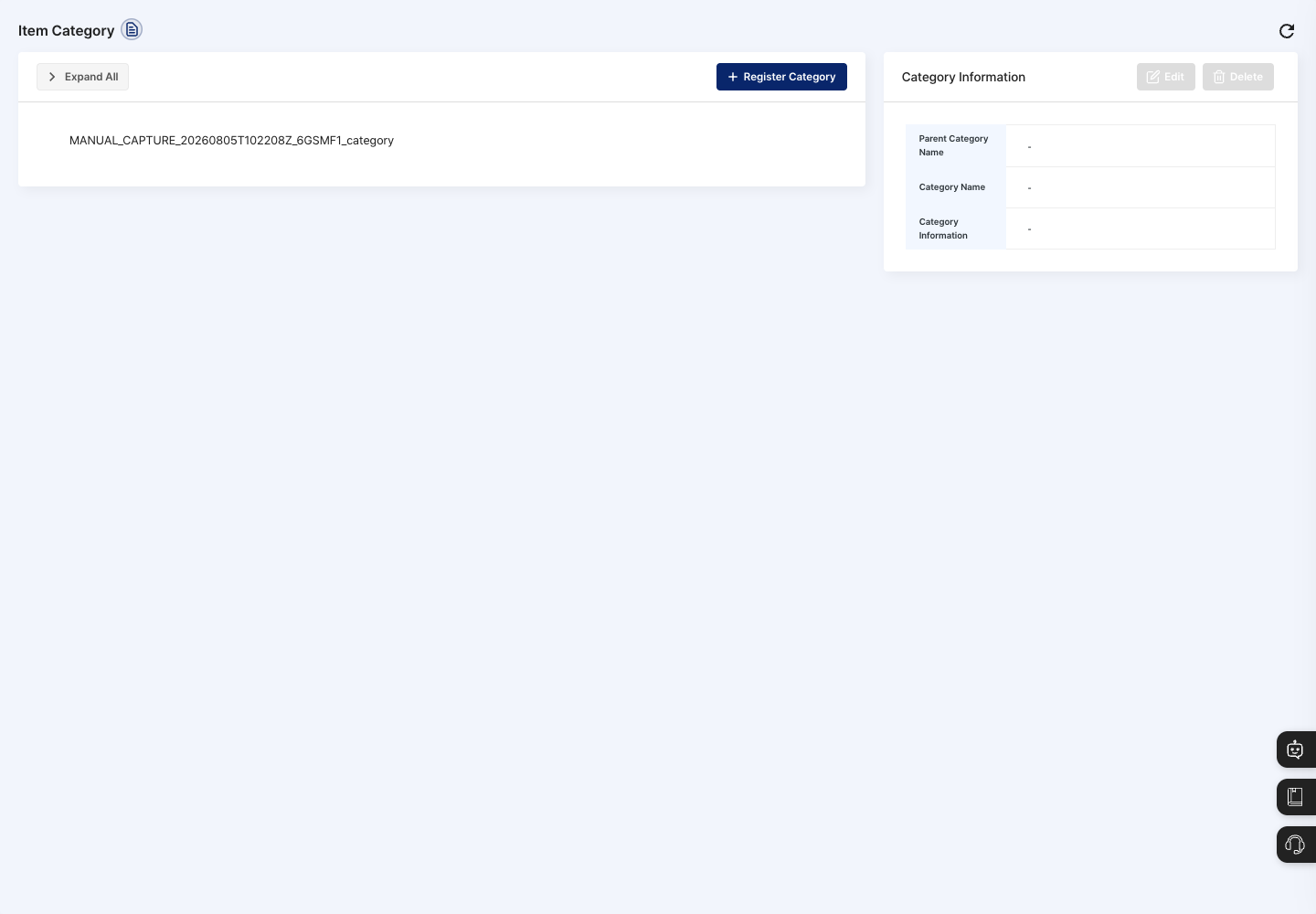
- Expand All: Expands the registered parent and child categories so you can see the whole hierarchy. Click it again (Collapse All) to collapse them.
- Category list: Click a category to select it; it is shown in bold. Click the same category once more to clear the selection.
- Register Category: Opens a window for entering a new category.
- Category Information: Shows the parent category name, category name, and category information (description) of the category selected in the list. You Edit and Delete here.
Register a category
- To create a child category, first click the category that will be its parent in the list on the left. If nothing is selected, the new category is registered at the top level (as a parent category).
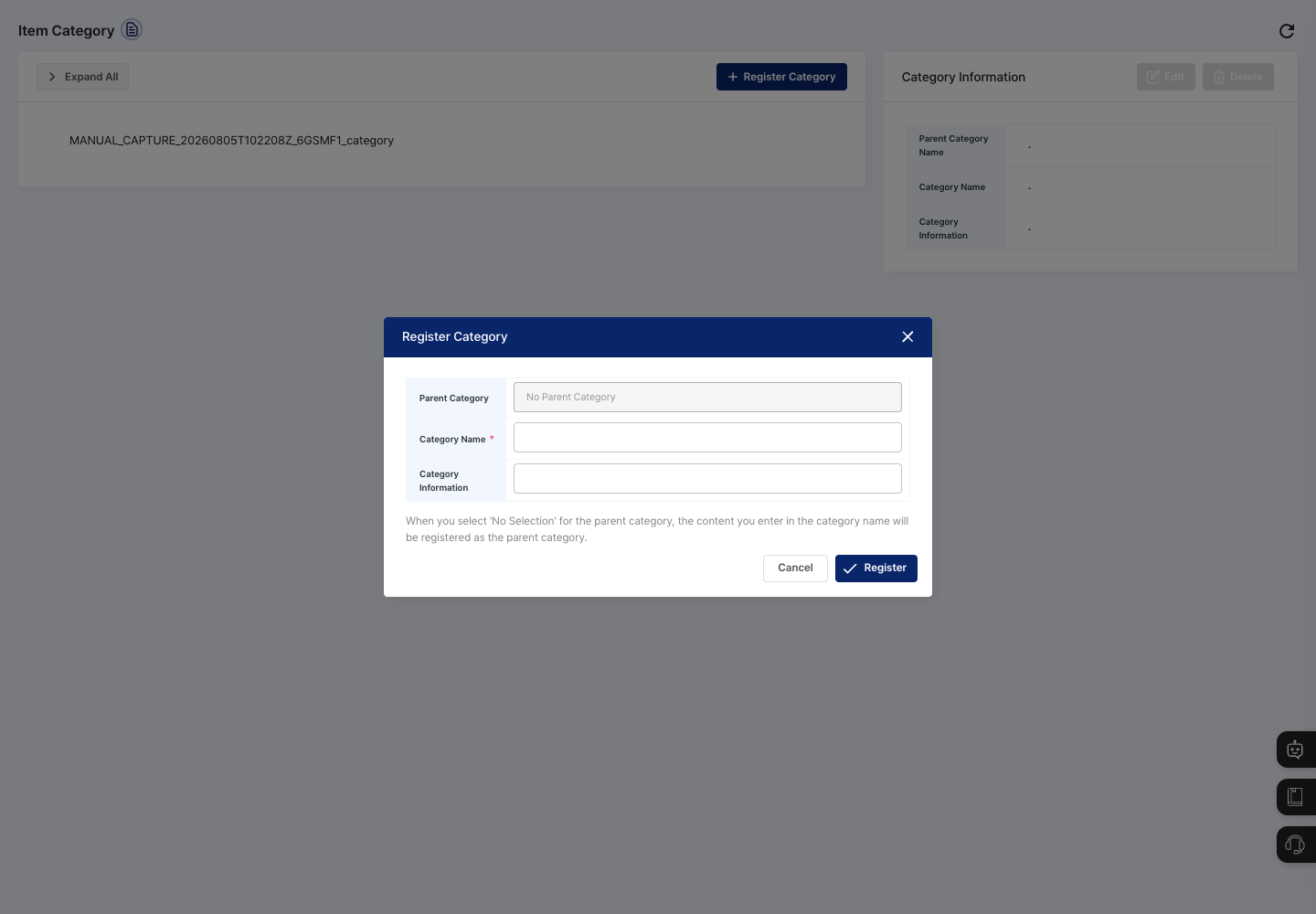
- Click Register Category.
- Check that the selected category is shown in the Parent Category field of the window. You cannot change this field in the window. If nothing was selected, it shows
No Parent Category. - Enter the Category Name.
- If needed, write the classification criteria or scope of use in Category Information.
- Click Register, then confirm in the
Do you want to register?dialog. - Check that the new category appears in the right place in the list.
View details and edit
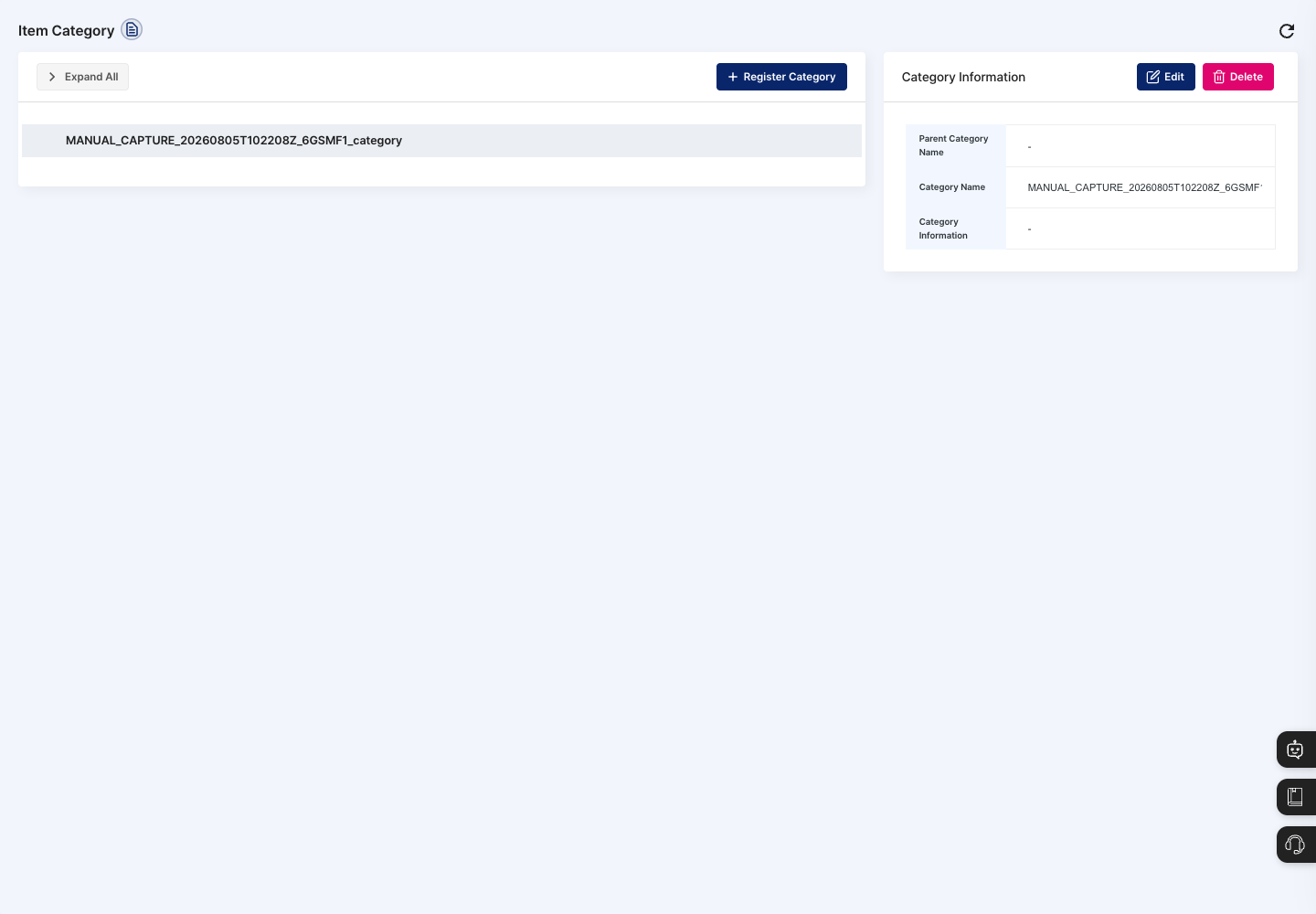
- In the list, click the category to edit.
- Check the details in Category Information on the right.
- Click Edit.
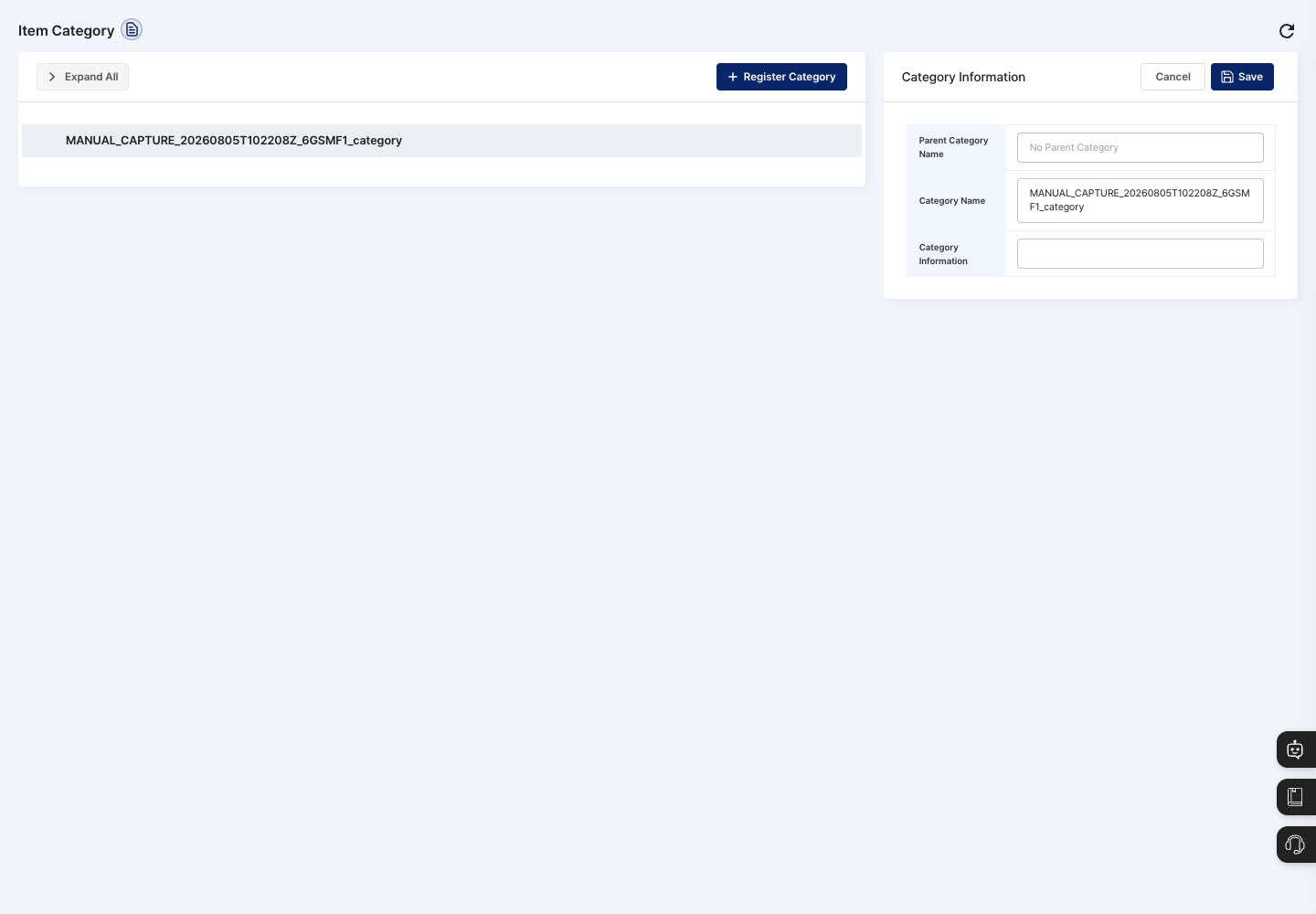
- Change the category name and category information, click Save, and confirm in the
Do you want to save changes?dialog. To keep things as they are, click Cancel.
You cannot change the parent category on the edit screen.
Delete a category
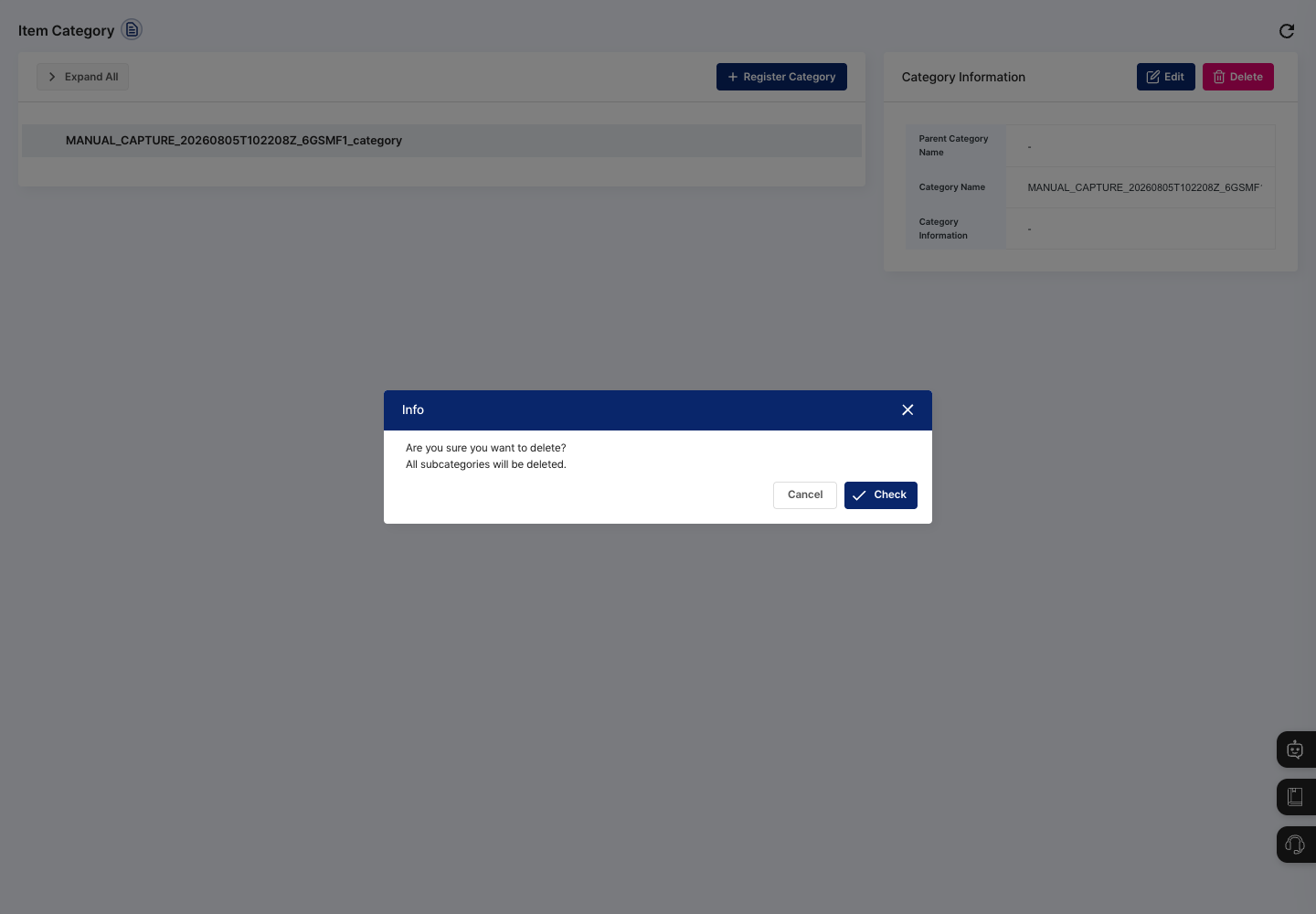
- In the list, click the category to delete.
- In Category Information on the right, click Delete.
- Read the message in the confirmation dialog and click Confirm.
- Check that the category has disappeared from the list.
FAQ
Q. I click Register, but nothing is saved.
If Please enter the category name. was shown, the category name is empty. A category name is required when registering a new category.
Q. I cannot create more child categories. Categories can have only up to three levels. Select a category at a higher level and register again.
Q. I want to move a category I already made under a different parent category. You cannot change the parent category on the edit screen. Select the parent category you want and register the category again.
Q. I deleted only one category, but several disappeared. The child categories under the deleted category are deleted with it.
Related menus
- New Item Registration — Choose the categories created here when you register items.
- Work Category Registration — Manage the categories used to classify work.