Standard Unit Management
This screen registers and manages the units (kg, g, EA, and so on) used for items, materials, and production. For units that must be converted into each other, such as kg and g, you can also set up unit conversions.
Screen layout
The first Standard Unit Management screen lists the registered units. In the condition search at the top, choose a search condition and enter a search term to find the unit you want.
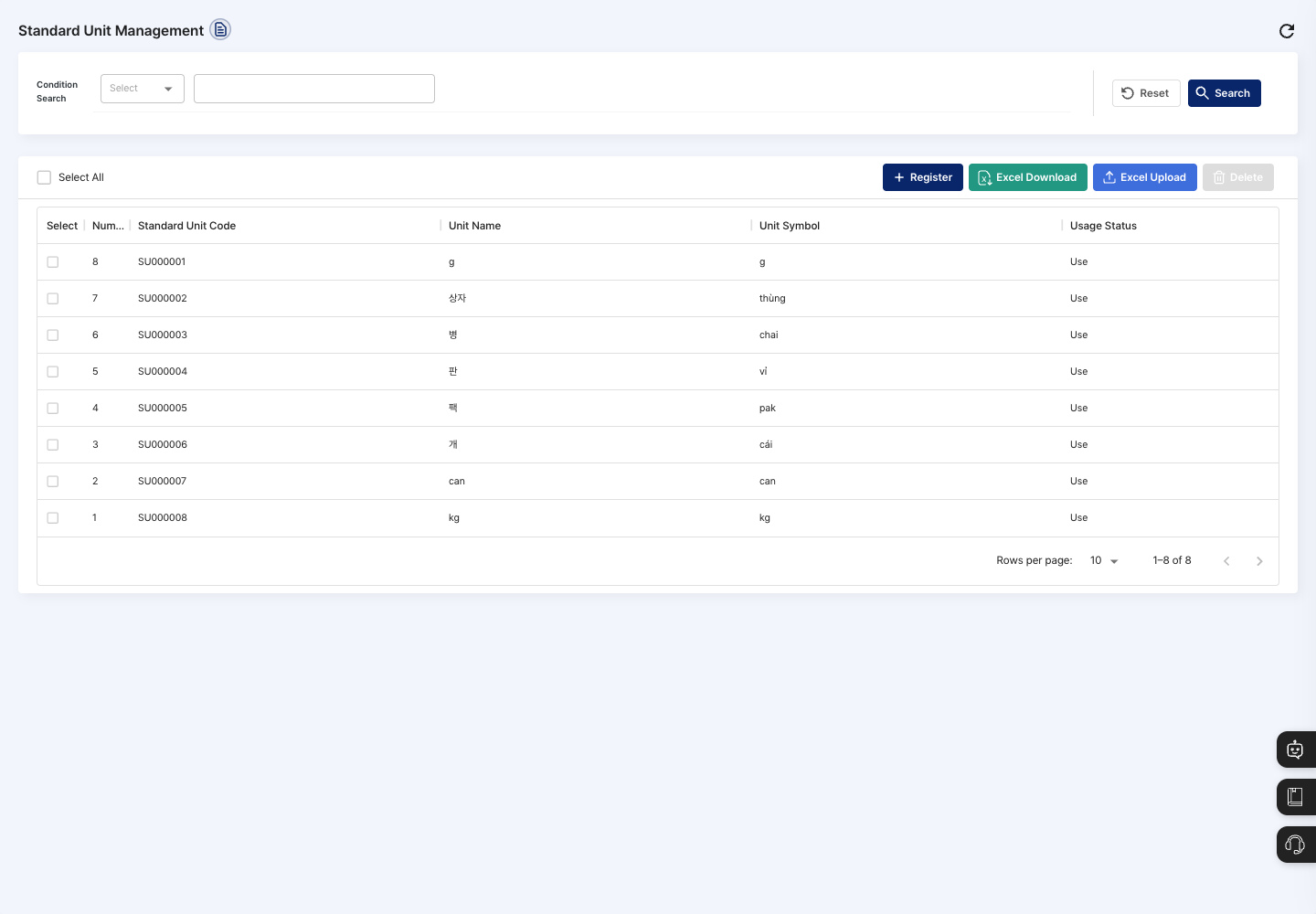
- Condition Search: Choose a search condition from
Unit Name,Unit Symbol, andUsage Status, enter a search term, and click Search. Click Reset to clear the conditions. - List: Check the standard unit code, unit name, unit symbol, and usage status. Units you do not use are shown in red as
Not In Use. Click a row to open the detail screen. - Select All: Checks or unchecks all units on the current page at once.
- Register: Creates a new standard unit.
- Excel Download: Downloads the list as an Excel file.
- Excel Upload: Write units in the template you get with Download Template, upload it with Attach File, and click Save to register several units at once. The shaded example rows are not uploaded.
- Delete: Deletes the units checked in the list.
Register a standard unit
- On the list screen, click Register.
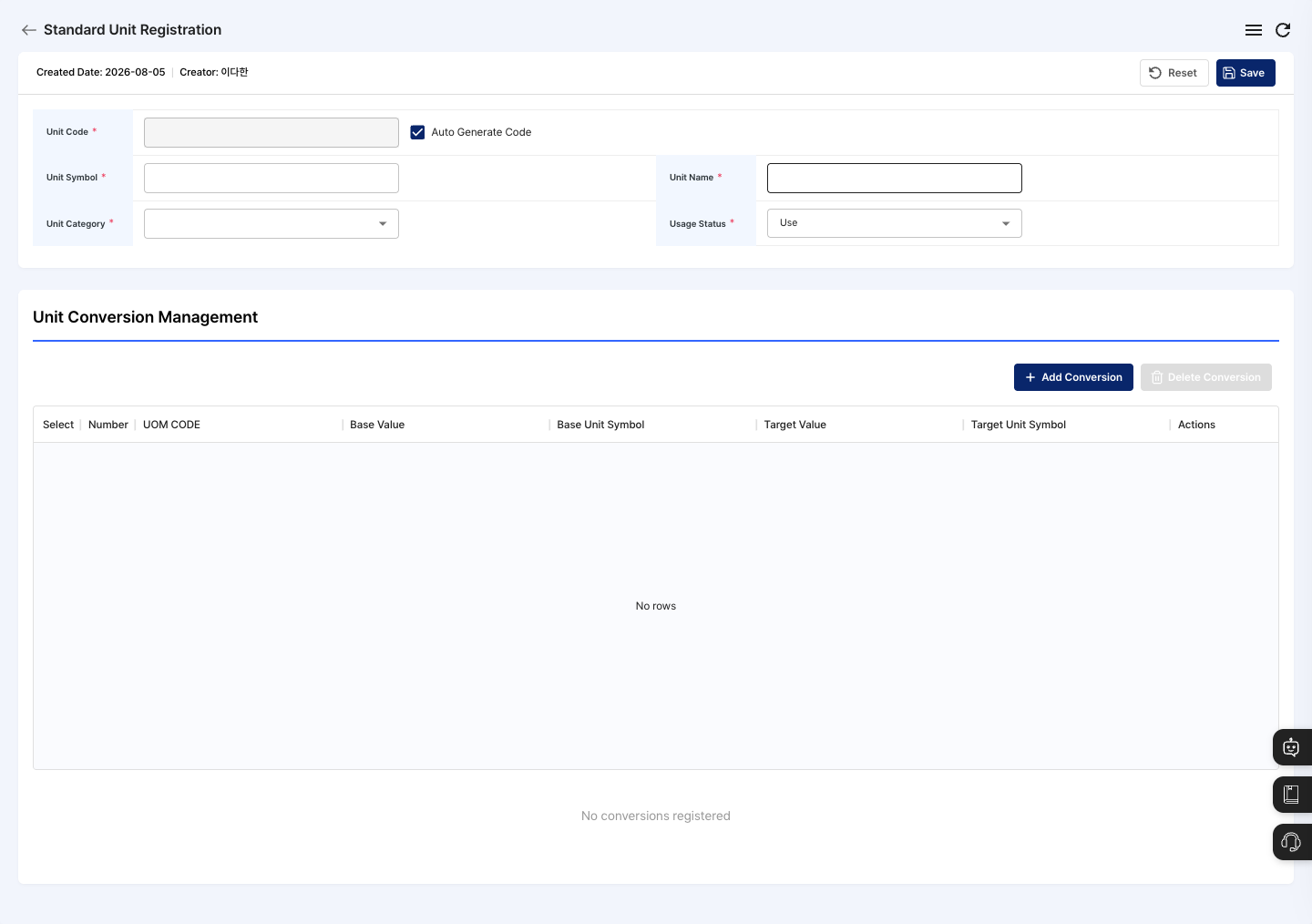
- Check the unit code. Auto Generate Code is checked at first, so the code is created automatically when you save. To enter it yourself, uncheck it.
- Enter the Unit Symbol. Examples:
kg,g,ea - Enter the Unit Name. Examples:
kilogram,gram,piece - Choose the Unit Category from
Weight,Length,Volume,Count,Time, andOthers. - Check the Usage Status. The default is
In Use. - If you need a conversion, add it in the Unit Conversion Management area below (see the next section).
- Click Save, then confirm in the
Do you want to register?dialog. When registration is complete, you return to the list.
Set up unit conversions
In the Unit Conversion Management area at the bottom of the registration and edit screens, set the conversion relationship between this unit and other units. On the detail screen, you can only view saved conversions. Unit conversions are optional.
- Click Add Conversion.
- Choose the Target Unit. Only units whose usage status is
In Useappear in the list. - Enter the Base Value and Target Value. Both values must be greater than 0. For example, to add g based on kg, enter a base value of
1and a target value of1000. - Click Add. The conversion ratio is calculated automatically from the two values.
- The conversion is saved only when you click Save on the standard unit screen.
- To change an added conversion, click the edit icon in the list, change the values, and save.
- If you no longer need a conversion you added before saving, check it and click Delete Conversion.
- You can leave the UOM code empty, and you can check Auto Generate Code.
Let the AI prepare a registration
You can ask the ORCA AI Assistant in a chat to prepare a draft standard unit registration. It is available on the AI Plus plan.
- Click the AI Chatbot button at the bottom right of the screen.
- Describe the unit to register, for example
Register the standard unit kg. If you also give the unit symbol, unit name, and category, the values are filled in more accurately. - When the AI opens the standard unit registration screen and fills in the values, check each filled value.
- Confirm the save yourself in the confirmation dialog.
View details and edit
- Click the unit to edit in the list to open its detail screen. The detail screen has the List, Edit, and Delete buttons.
- Click Edit.
- Change the unit symbol, unit name, unit category, usage status, and unit conversions. You cannot change the unit code.
- Click Save, then confirm in the confirmation dialog. When editing is complete, you return to the detail screen.
Delete a standard unit
- In the list, check the unit to delete. You can also delete it with the Delete button on the detail screen.
- Click Delete.
- Confirm in the
Are you sure you want to delete?confirmation dialog.
FAQ
Q. Do I have to register unit conversions? No. You can use a standard unit with only the unit registered. However, if your work requires converting between units such as kg and g, it is a good idea to set up the conversion too.
Q. It does not save. Check the message shown in the dialog. The unit symbol, unit name, and unit category must all be entered, and if you unchecked Auto Generate Code, you must also enter the unit code.
Q. The target unit does not appear in Add Conversion.
The target unit list shows only units whose usage status is In Use. Check that you registered the target unit as a standard unit first and that its usage status is not Not In Use.
Q. I cannot delete a unit.
Check the reason shown in the dialog. Instead of deleting it, you can also change the usage status to Not In Use so that it is no longer used.
Related menus
- New Item Registration — Link the standard units registered here to items.
- BOM Registration — Enter material requirements in standard units.
- ORCA AI Assistant — Prepare a draft standard unit registration in a chat.