Work completion — simple check
This shop-floor window lets you check only the good quantity and complete work with a single button. You can enter quantities with the keypad or fill them in by speaking with Complete with AI voice. The results you complete are applied to production results and material issue.
Screen layout
The top of the window shows the work order name and the number of remaining processes. Below that are Complete with AI voice and the good quantity for each process.
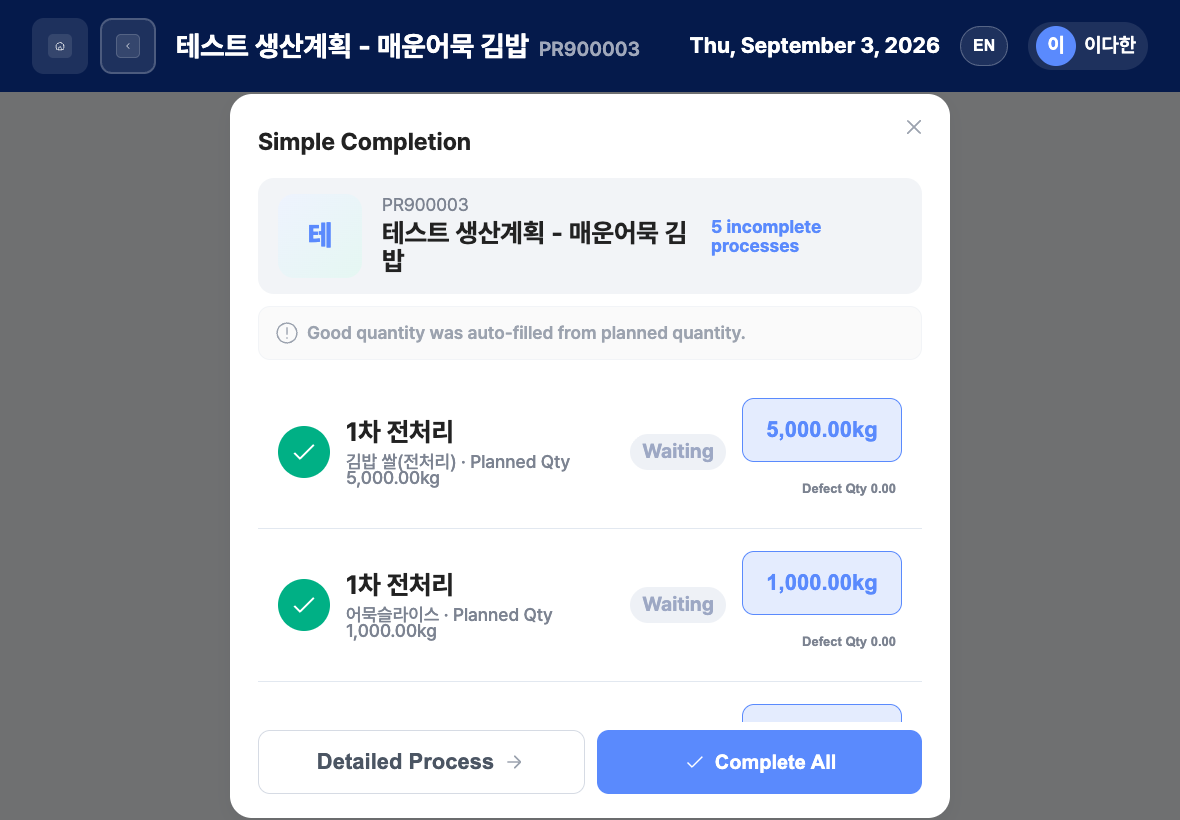
- Work order information: Production code, production name, and the number of incomplete processes (for example,
3 incomplete processes) - Complete with AI voice: Say something like "complete without defects" to fill in the quantities below.
- Guide line: At first,
Good quantity was auto-filled from planned quantity.appears, and if there is no saved production quantity, the planned quantity is filled in as the good quantity. After you fill in values by voice, it changes toQuantities were updated from voice recognition. - Process and output list: Each row shows the process name, the output name and planned quantity, and the status (Waiting, In Progress, Complete).
- Circle check on the left: Completes only that process.
- Good Qty button on the right: Correct the good quantity with the keypad.
- Defect Qty button: Enter this when there are defects.
- Work Report (Optional): Write text and attach items with Attach Photo and Attach File (PDF). Remove an attached file with the × next to it.
- Buttons at the bottom: Detailed Process, Complete All
Complete work with Simple Complete
- In the list, tap Simple Complete.
- Check that the good quantity of each process matches the actual amount.
- If it is different, tap the Good Qty button, correct it with the keypad, and tap Confirm.
- If there are defects, tap the Defect Qty button and enter them.
- If needed, add text, photos, and files to the Work Report.
- Choose how to complete.
- Complete one process only: Tap the circle check on the left of that row, then tap Confirm in the
Complete the [name] process?window. If processes remain, the window stays open and that row changes to complete. - Complete everything at once: Tap Complete All, then tap Confirm in the
Complete all remaining processes?window.
- Complete one process only: Tap the circle check on the left of that row, then tap Confirm in the
- When the
Work completion has been processed.window appears, tap Confirm or wait for the 7-second countdown to end to return to the list.
Complete work with AI voice
- Tap Complete with AI voice. It changes to
Listening.... - Speak to the tablet, for example, "complete without defects."
- When the recognized sentence appears on the screen, check it.
- If it is correct, tap Complete. To cancel, tap End.
- While the values are applied,
Applying the spoken content to the completion form.appears. During this time, you cannot tap Close, Detailed Process, Complete All, End, or Complete. - Check the filled-in good quantity and work report with your own eyes, and correct them if needed.
- Save with a circle check or Complete All.
FAQ
Q. I see Quantity exceeds the planned quantity. or a message that the entered production quantity exceeds the planned quantity.
Correct the values so that the good quantity and defect quantity together are the planned quantity or less, then save again.
Q. The work will not complete.
A work order needs a barcode for the work to start. If Barcode information required to start work was not found. appears, ask someone to check the production plan and barcode registration on the office PC admin screen.
Q. Voice recognition does not start.
If Microphone permission was denied. Allow microphone access in the browser settings. appears, allow microphone use in the tablet settings. If Voice recording is not supported in this browser. Use HTTPS. appears, check that you are connected over a secure connection. If Cannot run voice recognition because login information is missing. appears, sign in again. Depending on your company's plan or settings, the voice feature may not be available.
Q. It says Could not apply the spoken content.
The quantities were not filled in automatically. Enter them yourself with the keypad, or tap End and try Complete with AI voice again.
Q. I also need to enter start and end times for each process. Tap Detailed Process and enter them in Work completion — detailed check.
Related menus
- Work completion list — Find the work orders to complete.
- Work completion — detailed check — Enter times and quantities by process and complete the work.
- Production Plan Management — Set work orders and planned quantities.