Work completion list
This shop-floor screen (Work Completion) shows work orders as cards. Find the work you want to complete here, then move on to Simple Complete or the detailed check. The results you complete are applied to production results and material issue.
Screen layout
At the top are the search box, Search, Barcode Scan, and the calendar button. The work order cards are listed below. When you first open the screen, the full list is shown without a date condition.
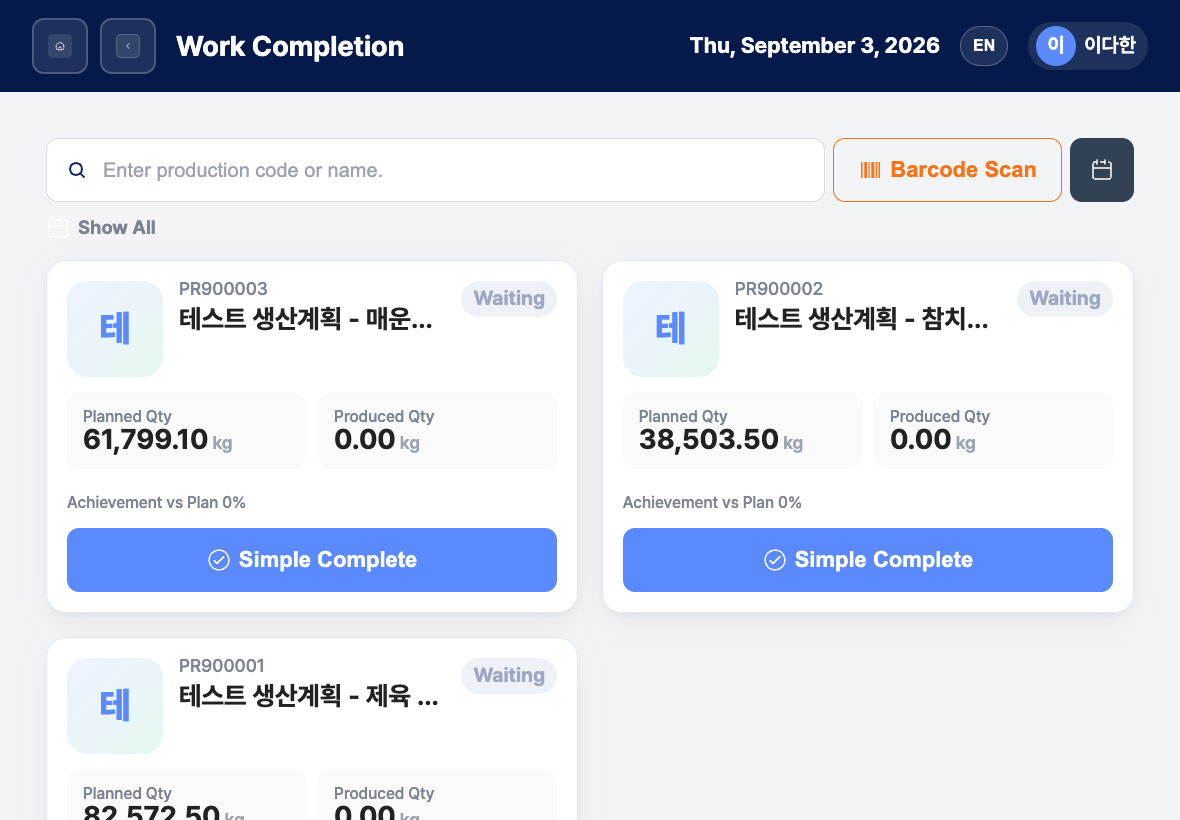
- Search box: Enter a production code or production name and tap Search or press Enter to find it.
- Barcode Scan: Scan a work order barcode to open it right away.
- Calendar button: Choose a date in the
View by Datewindow to see only that day's work orders. Dates marked with ● have registered production. Tap Today to move to today's date, and Show All to remove the date condition. - List title: When you choose a date, it appears like
2026-09-04 List. Tap Show All next to it to clear both the date and the search term. - Work order cards: Show the production code, production name, status (Waiting, In Progress, Complete), planned quantity, produced quantity, and achievement vs plan. Unfinished cards have a Simple Complete button, and finished cards have a Details button.
- Load More: Appears at the bottom when there are more than 20 cards, and loads the next cards.
Find a work order and complete it
- Enter a production code or production name in the search box and tap Search, or choose a date in the calendar.
- Find the card you want to complete.
- Tap Simple Complete on an unfinished card. The Work completion — simple check window opens.
- In the simple window, check the good quantity and complete the work. Complete with AI voice, which fills in quantities by voice, is also in this window.
- If you need to enter start and end times for each process, tap Detailed Process in the simple window to go to Work completion — detailed check.
Find a work order by barcode
- Tap Barcode Scan at the top of the list.
- Scan the work order barcode with the camera. If it is not recognized automatically, tap the capture button in the middle.
- If you cannot use the camera, enter the barcode or production code with Manual Input and tap Confirm. In the shop-floor app, you can also use the app's scanner with Open App Scanner.
- If a matching work order is found, the simple completion window opens right away. A window opened by barcode shows the
Recognized by barcode scanbadge. If the work is already finished, its details open instead.
View finished work again
- Find a card marked Complete.
- Tap Details on the card.
- In Work completion — detailed check, check the production information, outputs, work history by process, and work report, and if needed, correct it with Edit.
FAQ
Q. It says No production items match the conditions.
There is no work that matches the date or search term. Tap Show All to clear the conditions and search again.
Q. I entered a search term, but the list did not change. After entering a search term, you must tap Search or press Enter to search.
Q. I tapped to complete the work, but nothing happens.
A work order needs a barcode for the work to start. Without a barcode, Barcode information required to start work was not found. appears and completion does not proceed, so ask someone to check the production plan and barcode registration on the office PC admin screen.
Q. It says Failed to load work completion list. Please check the network and try again.
Check the network connection and try again.
Q. The work orders I see are different from the PC screen. The list shows only the work orders within the scope of the signed-in user and the company data.
Related menus
- Work completion — simple check — Check only the good quantity and complete the work quickly.
- Work completion — detailed check — Enter times and quantities by process, or view and correct finished work.
- Work Completion — The table-style work completion on the office PC admin screen.
- Production Plan Management — Register the production plans that become work orders.